Recently, we asked how to isolate the audio track from a video-recorded conference to publish it in podcast. This is a weekly issue for which there are three families of solutions: AI Tools modern (Descript, CapCut, Media.io) that do extraction plus audio cleaning in one stream, classic desktop software (VLC, Audacity) that remain the free reference and online extractors for a one-time need. Here is how to choose the right method depending on your usage case.
This guide compares six methods that I regularly use, with specific cases of use for each, and a clear answer to recurring questions (extracting from YouTube, MP4 to MP3 formats, best free software).
How to extract audio from a video simply
The principle is simple: any video in MP4, MOV or AVI format contains two independent tracks, image and sound. To extract audio is to separate the soundtrack and save it into an independent audio file (MP3, WAV, AAC according to your needs). This is a reversible operation that never degrades the source video.
Three criteria determine the method to suit your needs. First the frequency: a one-time extraction does not justify installing a software, a regular use yes. Then the desired quality: a track for a professional podcast deserves a deruction AI, a track for private use is content with gross extraction. Finally the source: a local video treats itself differently from a URL YouTube.
Essentials
- Point extraction without installation: tool online (Videocandy, Oconvertor, Canva)
- Regular use with AI : Description for transcription, CapCut for editing Social
- Free desktop method: VLC or Audacity, still current in 2026
- Since YouTube : yt-dlp command line or Videocandy YouTube web side
- Recommended Output Formats: MP3 192 kbps for the voice, WAV for archiving pro
- Typical extraction rate: 10 minutes of video in 30 seconds maximum
Extract audio online for free (fast method)
For a one-time need, no installation is required. Three tools free online work well in 2026, with the usual web limits (capped file size, conditional uploads).
Videocandy remains the historical reference for rapid extraction. We load the video, we choose the output format (MP3, WAV, M4A), we download. No registration, file capped at 500 MB. It's the most reliable shortcut when you don't need to clean the audio behind.
Oconvertor offers the same with a denser interface but more varied output formats (up to FLAC for loss-free archiving). Canva allows extraction in its online editor, convenient if you are already connected to a Canva account for other uses.
The limit of all these tools is the same: they do extraction, not cleaning. If your video has a background breath, a keyboard noise, a poorly exposed voice, the audio extracted remains in the state. To go further, you have to pass on a tool AI.
The 3 AI Tools tested to extract and improve audio
This is where the AI Tools modern change the deal. They do extraction plus cleaning more, in case of Descript, text transcription in a single flow. Here are the three that I regularly use.
Descript : extraction + transcription in one flow

Descript is tool I advise the podcasters, journalists and content creators first. We're loading the video.tool separates audio, cleans it via its Studio Sound engine (denouncing) AI), and transcribed it into editable text. One can then cut a sentence in the text, audio is automatically cut. It is the most productive workflow for spoken content.
Highlights: The transcription is excellent in French (precision above 95 per cent), the export offers all common audio formats (MP3, WAV, M4A), and the debusting Studio Sound rivals with tools specialized. The free plan allows to extract up to one hour of video per month. The paid version starts at $12 a month for regular use. Our Full Review of the Descript details all the features.
CapCut: extraction in the timeline of editing
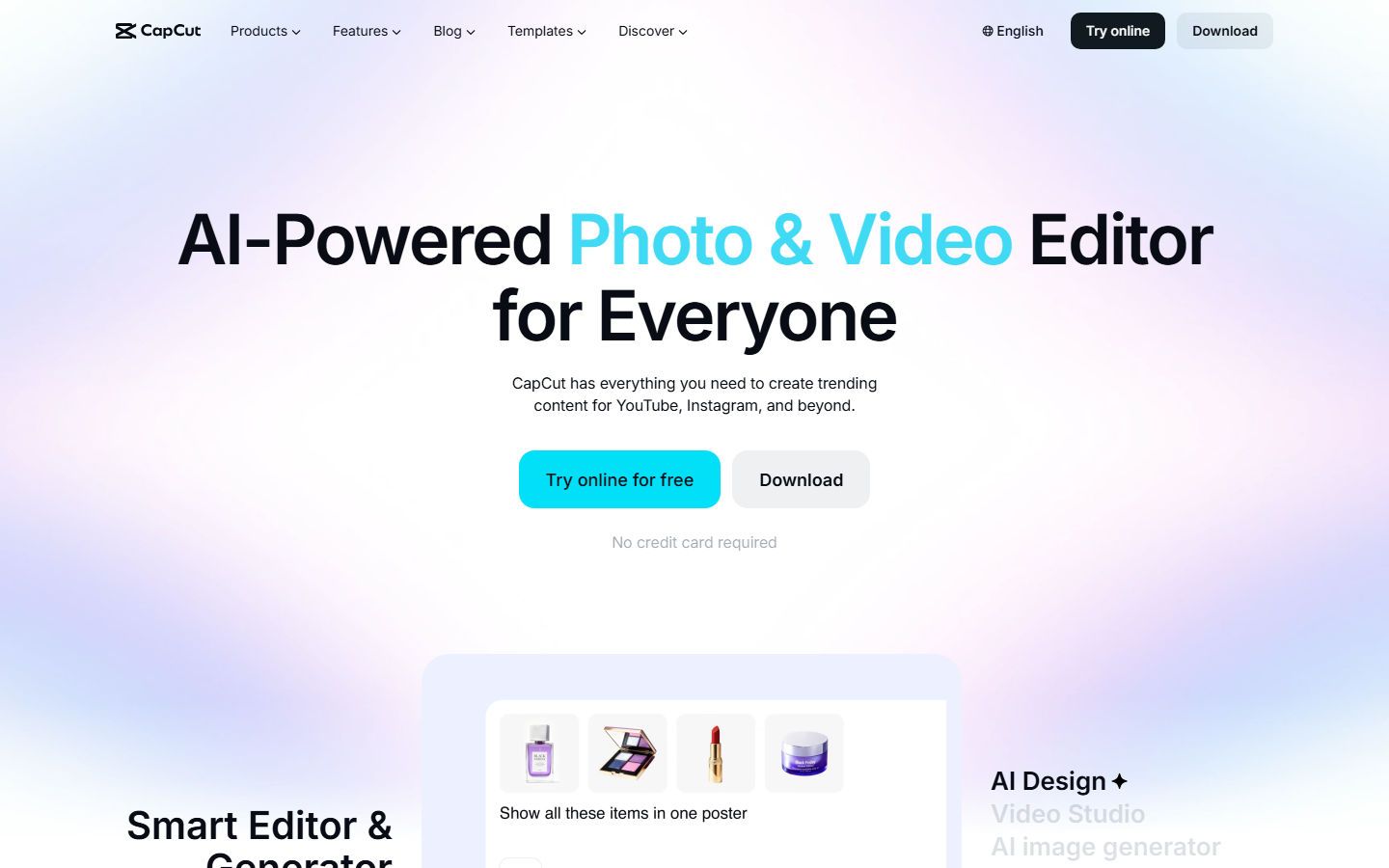
If you are already editing your videos in CapCut, the extraction is done without leaving it.tool. Import the video into the timeline, right click on the clip, « Detach audio », the sound track appears on a separate track. It can then be copied, cut, or exported alone in MP3 or WAV from export options.
This workflow is ideal when extraction is an intermediate step in the editing (reply audio of a tuto in TikTok clip for example). CapCut also includes an automatic debugger in its free offer, lighter than Descript but sufficient for social content. Our comparison of the tools of the editing AI details the use cases where CapCut differs.
Media.io: versatile online suite
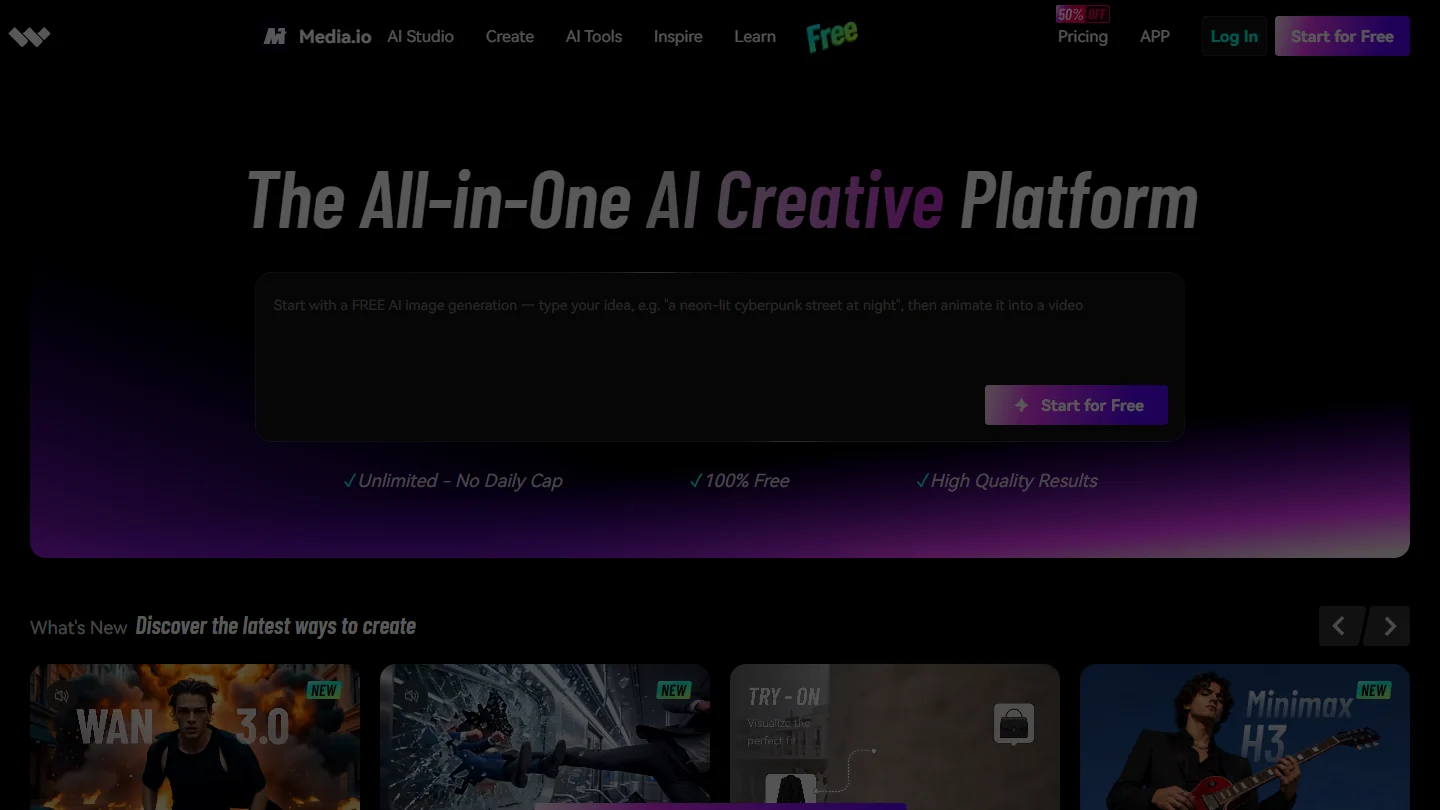
Media.io (edited by Wondershare as Filmora) offers audio extractor in a full suite directly accessible in the browser. No installation, the free offer covers short extractions (up to five minutes), the Pro offer at 15 dollars per month unlocks long files and the tools Cleaning AI.
The suite includes a depresser, a « voice remover » which isolates the voice from the background music, a volume normalizer. This is a good compromise for creators who want to tool unique multifunction without going through Descript. The rendering of the noise AI is correct, not at Descript on difficult but sufficient cases on sound proper to the source.
Extract audio with VLC (free desktop method)
VLC remains in 2026 the universal solution to extract an audio track without installing d tool additional. The open source media player incorporates a often unknown conversion function. This is the exact procedure.
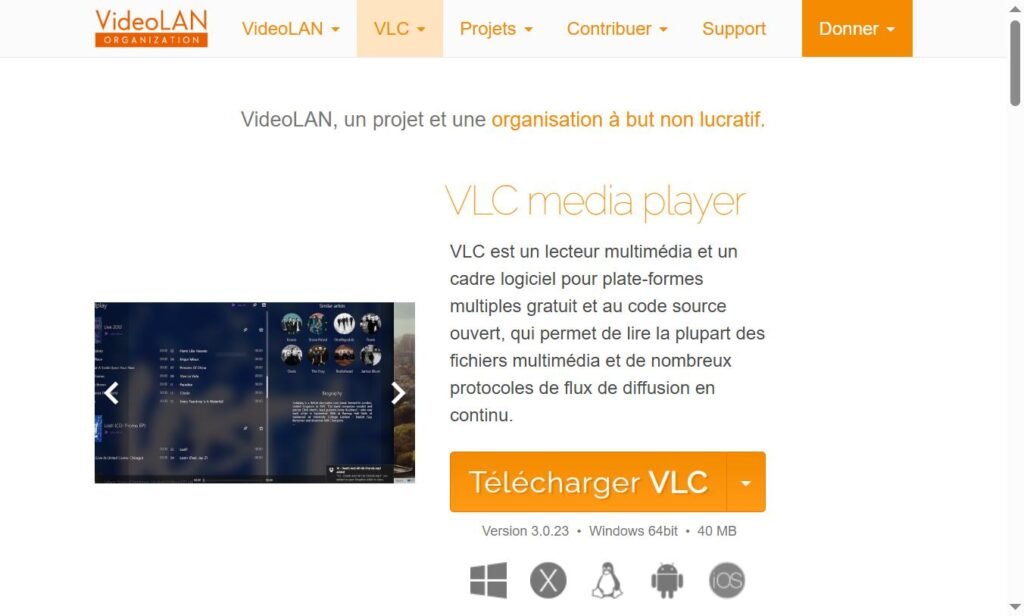
Open VLC, go to menu Media, choose Convert / Save. Click Adding to load your video file, then Convert / Save Down there. In the next window, choose an audio profile (e.g. « Audio – MP3 »), select the destination folder and click Start. VLC extracts the audio track in seconds.
Benefits: totally free, no account, no file size limit, works offline. Limitations: no audio cleaning behind, somewhat dated interface, default profiles are not always suitable (MP3 export can cap 128 kbps). For quick archiving or troubleshooting, it's perfect. For a professional podcast stream, we will pass on Descript.
Extract and edit with Audacity (open source reference)
Audacity has been the reference open source audio editor for over twenty years. Unlike VLC, which is limited to extraction, Audacity allows to extract and edit the track in the following way: cut, normalize, debuff (via the native plugin « Noise reduction »), export in all common formats.
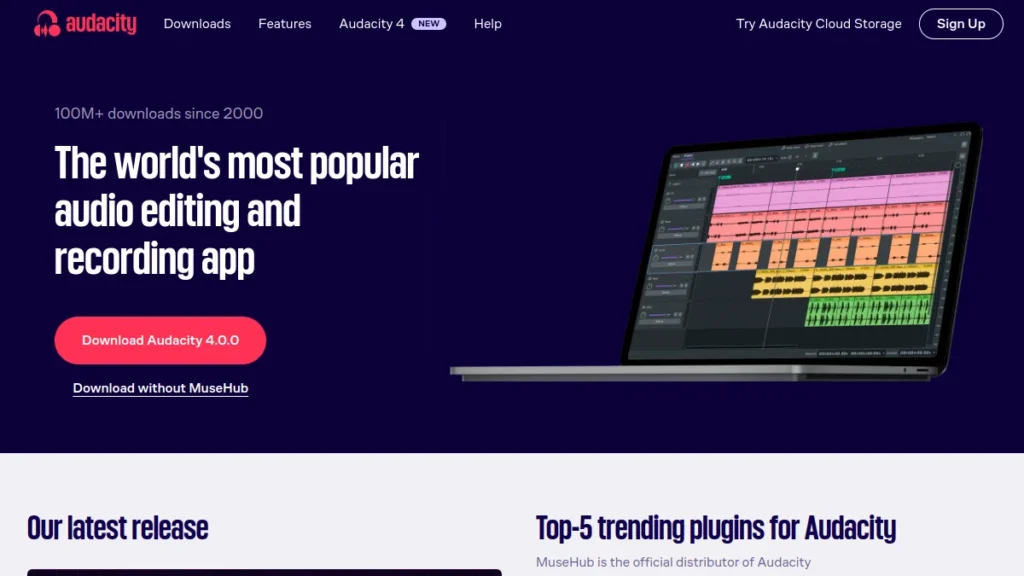
Workflow is denser than on a tool AI modern. You have to import the video (Audacity accepts MP4), isolate the track, apply a noise profile on a silent portion, and then launch the reduction on the entire track. Once controlled, the method gives a result close to the AI Tools free of charge and totally offline.
This is the solution I recommend to podcasters who want to keep their hands on every step of the way, or to users who refuse any upload in the cloud for confidentiality reasons. Audacity works on Windows, Mac and Linux.
Extract audio from a video YouTube
This is the most frequent question, with an answer that depends on the legal context. YouTube does not allow audio extraction of most videos by its conditions of use. For personal videos or under Creative Commons license, two methods work.
On the web, Videocandy YouTube and oconvertor offer extraction from a URL YouTube. We paste the link, choose the format, download. Fast but subject to limitations imposed by YouTube (quality retrograde, blocking on protected videos).
Software, yt-dlp remains tool reference for users comfortable with the command line. The command yt-dlp -x --audio-format mp3 URL audio extract from a URL YouTube in MP3 in one line. This is the most reliable option for regular and automated extractions, within the limits of what the conditions of use allow.
And if your goal is not to keep the whole soundtrack but only one part, the voice on one side and the music on the other, extraction is no longer enough: you need a separation model. We compare the tools free (UVR5, Audacity, LALAL.AI, MVSEP) in our guide for separating voice and music with AI.
Once the audio is isolated, you can also turn it into text. Our guide for transcribe a video into text details six free or inexpensive methods, with their limitations.
Choose the method according to your use case
Podcast to publish from video interview
Descript priority. The workflow extraction plus deruction plus transcription is justified from the first publication. Text transcription also allows to retouch the hesitations and markers of hanging for extracts on the networks.
Audio extract for TikTok or Reels clip
Go first. We stay in the workflow of editing social, extraction is instant, and export offers all the formats expected by the platforms. No need for a tool external.
Archiving a conference or webinar
VLC or Audacity. The file remains local, no size limit, free export format (FLAC or WAV for loss-free archiving). No heavy cleaning if the source is clean.
One-time extraction from a video YouTube
Videocandy YouTube for single-use extraction. yt-dlp if you make several per week on content you have the rights to. Always check the conditions of use upstream.
Online courses or tutorial to be annotated
Descript, for automatic transcription which allows to identify key passages in the text and to create notes by timestamps. This is an underestimated use of tool.
Frequently Asked Questions
How to extract the sound of a video online for free?
Use Videocandy, oconvertor or Canva. We load the video, we choose the MP3 or WAV format, we download. No account required at Videocandy and oconvertor, 500 MB ceiling per file. For a one-time need, this is the fastest method.
How to extract audio with VLC?
Open VLC, menu Media, Convert / Save. Add your video file, click on Convert / Save. Choose profile « Audio – MP3 » (or WAV), select the destination folder, start the conversion. The extraction takes a few seconds for a 10-minute video.
How to extract audio from a MP4 without losing quality?
Use a compression-free format such as WAV or FLAC. VLC and Audacity allow FLAC export (without loss), Descript and Media.io offer WAV. The extraction in MP3 at 320 kbps remains indistinguishable from an ear WAV in 95% of cases, while weighing six times less weight.
What is the best free audio extraction software?
VLC for simplicity and Audacity for control. Both are completely free, without account, without file limit. VLC extracted faster, Audacity allows editing in the wake. Descript in free version remains the best option if you want the text transcription as bonus.
Can we extract audio from a video on the phone?
Yes, CapCut mobile (iOS and Android) does extraction in three taps. On iPhone, native application Files also converts a MP4 to M4A via a custom shortcut. For Android, the official VLC app offers the same features as the desktop version.
Extracting audio from a video is no longer a technical operation in 2026. The tools free as VLC, Audacity or Videocandy are enough for most cases. For a professional podcast stream or regular reuse, a tool AI as Descript or CapCut saves several hours a week thanks to automatic transcription and built-in deruction. To go further on the AI Tools audio, check out our comparison of the generators Music AI and our guide of the voiceover AI free.
For a more specific need for MP4 conversion to MP3, see our guide of the 7 tools tested to convert MP4 to MP3 with the exact procedure for each.
To go further on this subject, consult our Complete Guide convert video to gif.