Converting a video to GIF remains a daily need: sending an excerpt to Slack, adding a funny reaction to a doc, or integrating a short tutorial on a site without imposing a video player. Five tools Do this in 30 seconds, from online converter to desktop software. Here Which Should You Choose depending on your use case.
The GIF format has limits (heavy weight, 256 color palette) but remains essential for web use. I compare output quality, customization options, and especially the final weight of the GIF generated.
📌 Essentials
- Fastest online : ezgif.com (without account, up to 100 MB)
- Lightest Exit : Giphy Video-to-GIF (optimized compression)
- For content creator : FlexClip (Editor before conversion)
- Batch pro with API : CloudConvert
- Desktop offline : GIMP or Photoshop (total control)
- Recommended GIF format: width 480px, 15 fps, 3-8 seconds (reasonable weight)
Why convert video to GIF in 2026?
The GIF retains three advantages that explain its persistence despite the appearance of more modern formats (WebP, MP4 optimized):
- Universal Autoplay on Slack, Discord, Twitter, chat, without clicking
- No player required : integrates directly as an image in an email, a doc, a blog
- Universal support : all browsers, apps and emails have been displayed for 30 years
Typical cases of use: funny emotional reaction on Slack, extract produced in a marketing doc, tutorial short integrated into a blog article, animation interface for a presentation.
The 5 tools tested to convert MP4 to GIF
| Tool | Type | File Limit | Options | Rating |
|---|---|---|---|---|
| Ezgif | Online | 100 MB | progress | 9,0 / 10 |
| Giphy Video-to-GIF | Online | 100 MB | basic | 8,3 / 10 |
| FlexClip | Online + editor | 1 GB | Complete | 8,8 / 10 |
| CloudConvert | Online + API | 1 GB | Automation API | 8,5 / 10 |
| GIMP | Desktop offline | none | Total control | 8,0 / 10 |
1. Ezgif: the free online reference
Ezgif.com is my default choice. Slim interface, no registration required, up to 100 MB of video input, end of output control: time to cut, target resolution, framerate (5 to 30 fps), compression quality. In 2026, it is the most widely used video-to-GIF converter.
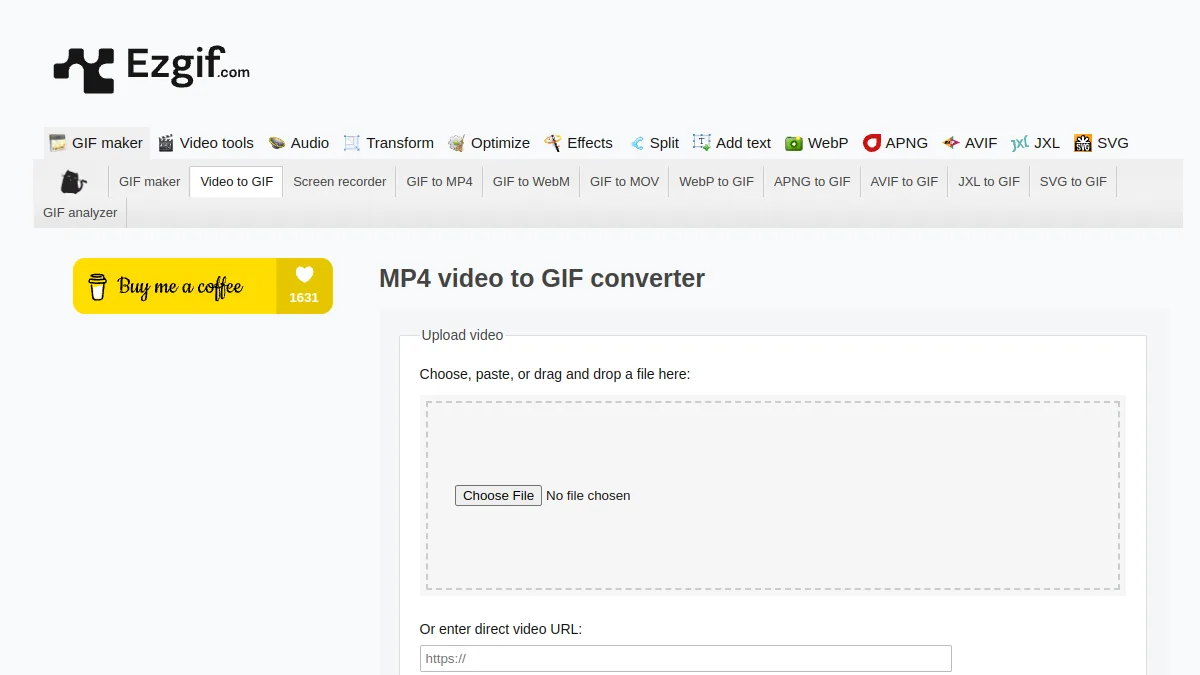
The procedure: upload the MP4, adjust the starting and ending point (e.g. 3 seconds to 8 seconds), choose the resolution (480px wide enough for web), start the conversion. Result in 20-40 seconds depending on weight.
2. Giphy Video-to-GIF: optimized compression
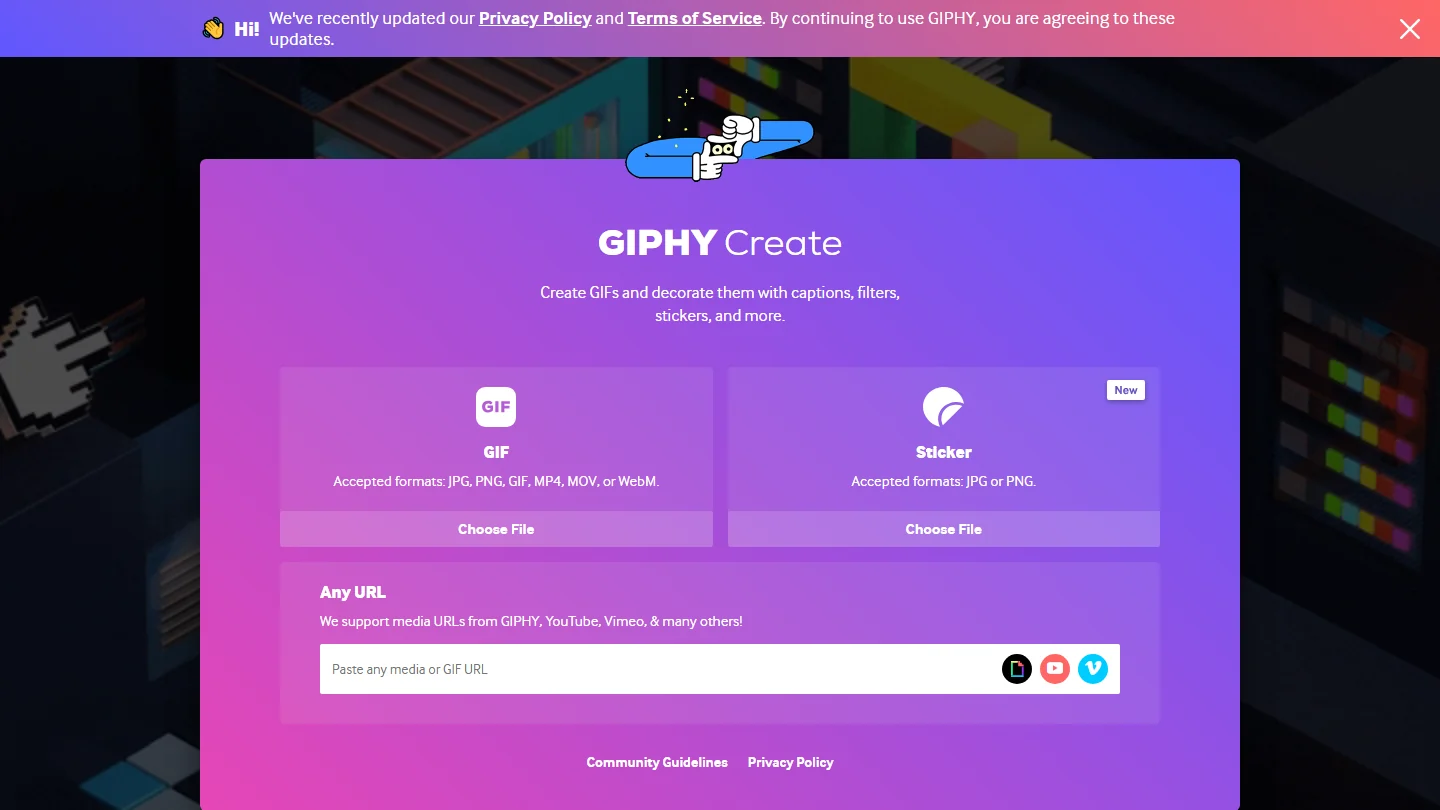
Giphy also offers a video-to-GIF converter via its web interface. Attitude: their compression algorithm systematically produces GIF 20-30 % lighter than Ezgif for equivalent visual quality. Ideal if you share on Slack or Discord where the file limit is strict.
Bémol: less complete interface than Ezgif (less trim options, fixed framerate), and your GIF is added to the Giphy public library unless explicitly action. Avoid for confidential content.
3. FlexClip: video editing before conversion
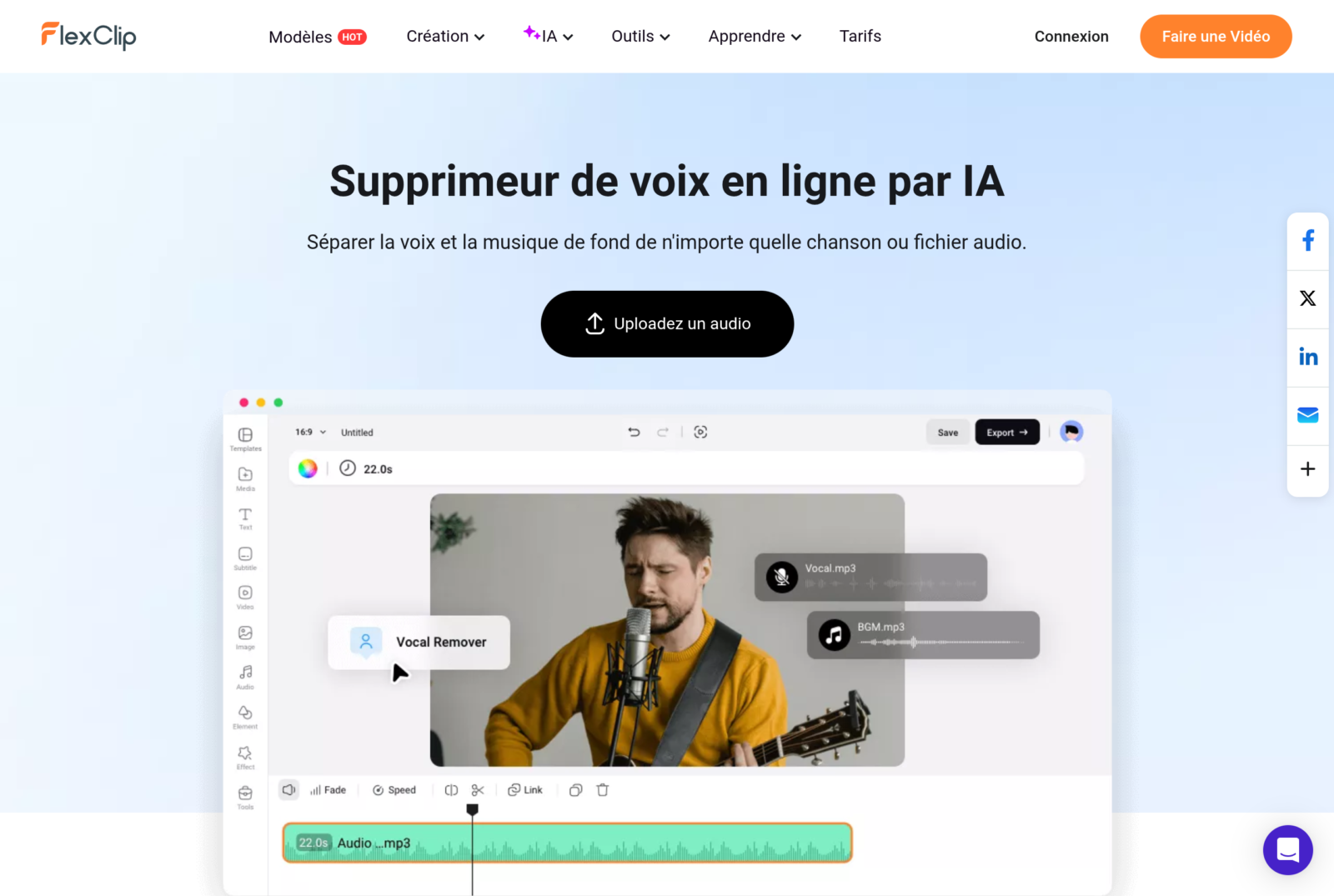
FlexClip combines full video editor and GIF export. You can cut the video precisely, add text, apply filters, before generating the final GIF. Useful for creating GIFs with inlaid text (call to action, legend, meme). See our Full Review FlexClip.
4. CloudConvert: batch and API for pro use
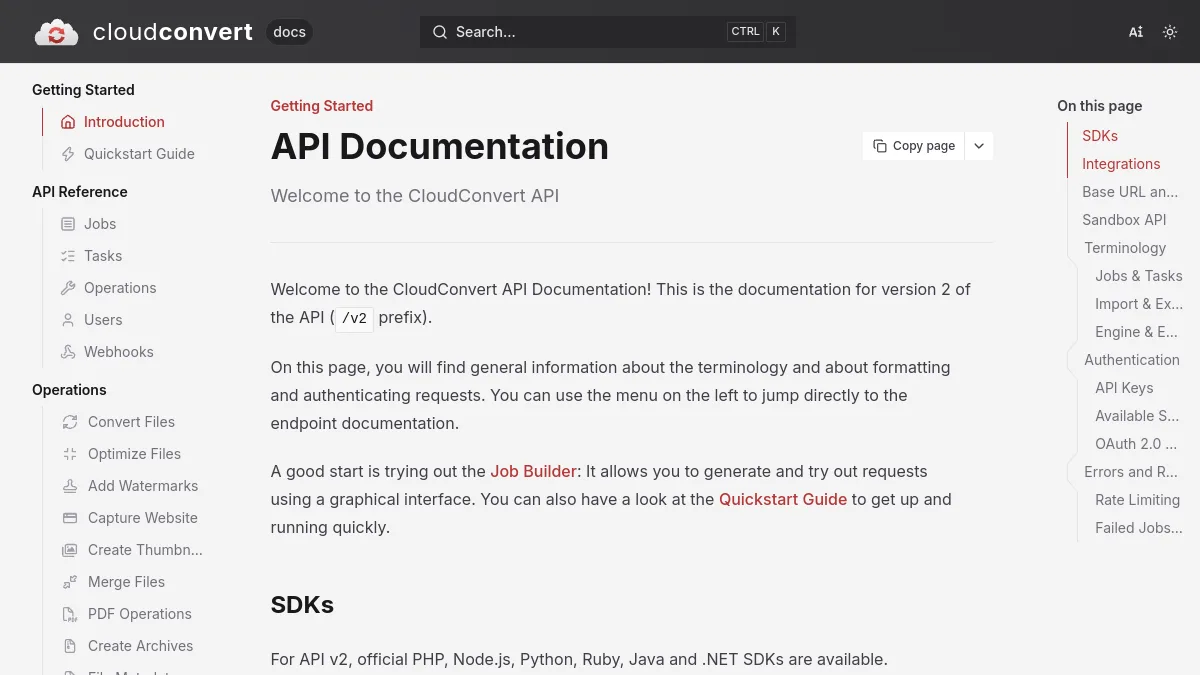
CloudConvert offers the REST API to automate MP4-to-GIF conversions via Zapier, Make, or a home script. Useful if you generate GIFs to the chain (e.g. for an e-commerce product catalogue). 25 conversions per day free of charge, 9 dollar pro offer per month.
5. GIMP: offline desktop control
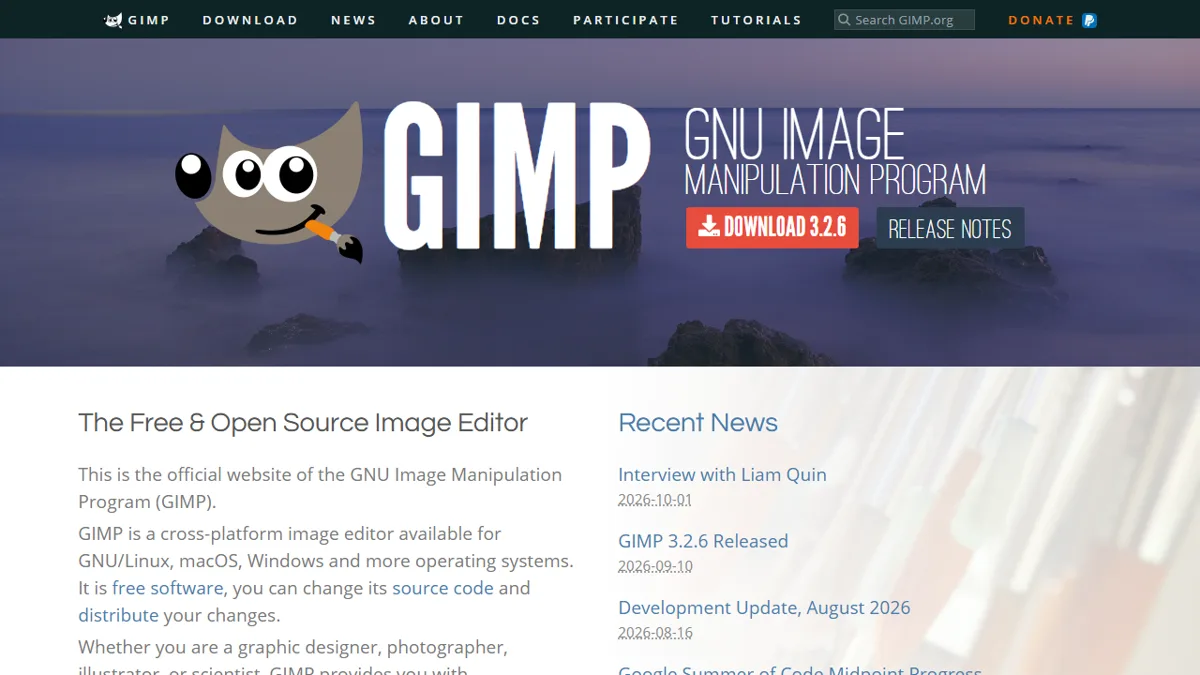
GIMP, the open source image editor, imports an MP4 video as a sequence of images and exports in GIF with total control: custom palette, traming, framerate, loop. Powerful but overkill for common use. Book GIMP in case you want to optimize by hand a GIF for minimum weight or maximum quality.
How to optimize the weight of a GIF for the web
An unoptimized GIF can weigh 20-50 MB for 5 seconds of video, which is unusable on the web. Here are the four levers to go down to 1-3 MB:
- Resolution : target 480 pixels of maximum width for web (compared to 1080p+ for video). Divides the weight by 4.
- Framerate : 15 fps is enough for most cases (vs 30 fps for fluid video). Divide the weight by 2.
- Duration : cut to 3-5 essential seconds. Each second adds up linearly.
- Palette : reduce to 128 or 64 colours if the content is ready (grahic rather than photo). Divide the weight by 2 more.
Typical optimal combination: 480×270 px, 15 fps, 4 seconds, 128 colors. A GIF from a 20 MB MP4 goes up to 800 KB-1.5 MB, widely used everywhere.
GIF or MP4 video: when to choose what
Use GIF when:
- Mandatory autoplay without click (Slack, Discord, Twitter DM)
- Integration into a doc Google, Concept, Confluence
- Court (< 8 seconds) and not sound required
- Universal support guaranteed without player
Prefer MP4 when:
- Duration greater than 8 seconds (GIF weight becomes prohibitive)
- Sound is part of the content
- Priority visual quality (MP4 supports millions of colors vs 256 for GIF)
- Modern Web (mutual MP4 autoplay works everywhere now)
Frequently Asked Questions
How to convert video to GIF for free?
Ezgif.com as a priority (no registration, up to 100 MB, fine control). Giphy Video-to-GIF for optimized compression. FlexClip to combine editing and conversion. All free for one-time use.
What maximum size for a GIF on Slack?
Slack accepts up to 1 GB per file but recommends to stay within 8 MB for autoplay. A well-optimized web GIF (480×270 px, 15 fps, 4 seconds) weighs between 800 KB and 2 MB, largely within limits.
Can you convert a YouTube video to a GIF?
Yes, several tools (Ezgif, Giphy GIF Maker, y2mate) offer direct import from a URL YouTube. Attention to the legal framework: convert video YouTube in GIF for personal use is tolerated, republishing it on a commercial site requires permission from the creator.
How to convert an iPhone video to a GIF?
Apple native shortcut application allows a shortcut « Video to GIF » configurable in a tap. Otherwise, all tools online (Ezgif, Giphy, FlexClip) work in Safari mobile. Result saved in Photos.
Does the GIF support sound?
No, the GIF format is image only, no audio track. For a sound video extract, prefer the optimized MP4 (H.264, reduced resolution, web-compatible silent autoplay).
Go further: audio and text from the same video
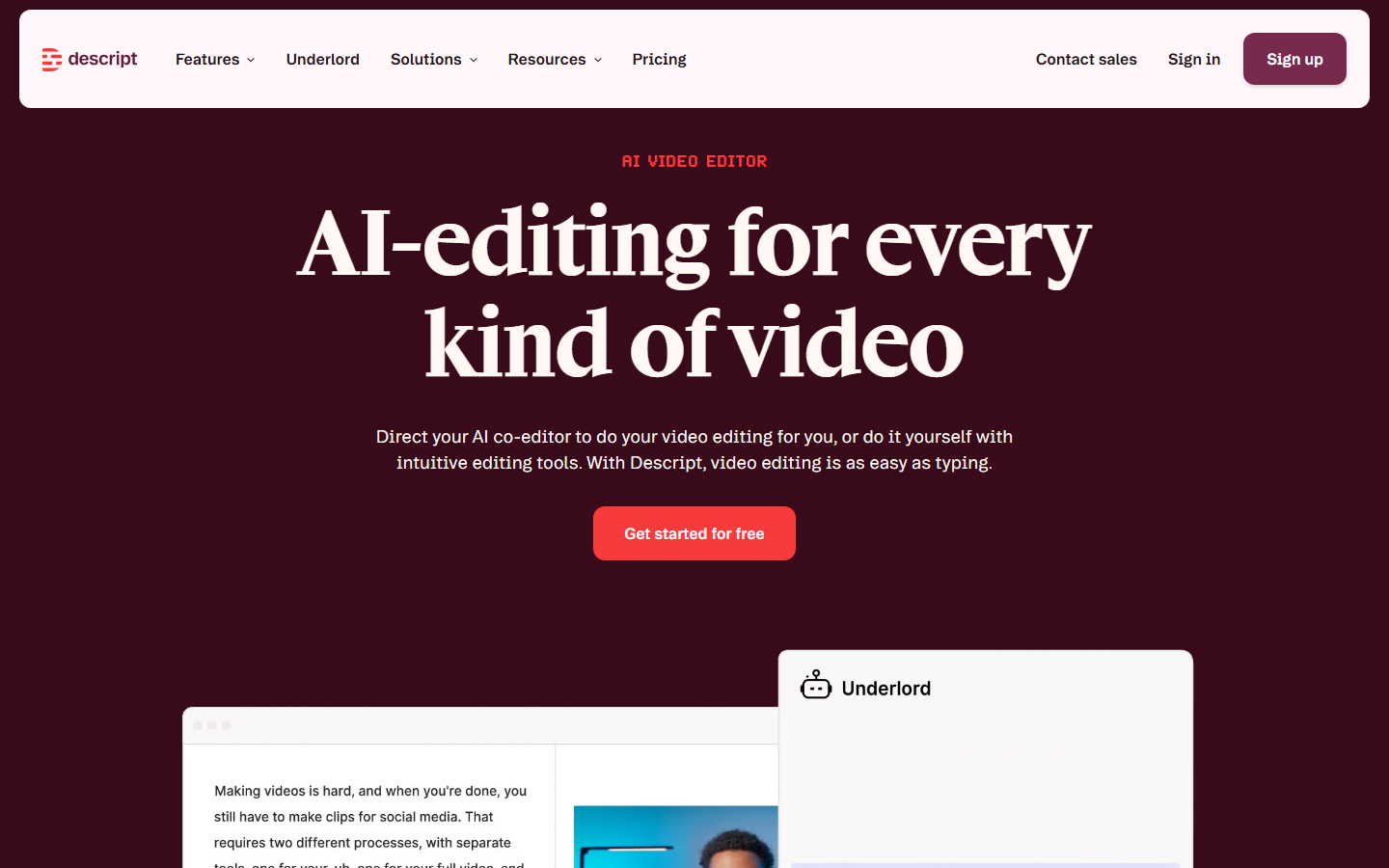
If your source video contains voice and you want to exploit everything, Description allows in parallel the GIF to extract audio and generate a complete transcription. Useful for a blog post that accompanies a viral GIF.
Filmora lets edit the video (cut, add animated text, apply filters) before exporting the final GIF. Workflow stays in one tool, from import to final export.
Converting a video to GIF is a 30 seconds exercise in 2026 with the good ones tools. Ezgif for simplicity, Giphy for compression, FlexClip for advanced edition. To go further on video conversions, check out our guide for converting MP4 to MP3 and our full audio extraction tutorial.
🎯 Verdict
For a one-time need, Ezgif is enough. For regular use with editing and text, FlexClip combines everything in one tool. For channel automation, CloudConvert remains the only real option with its REST API.