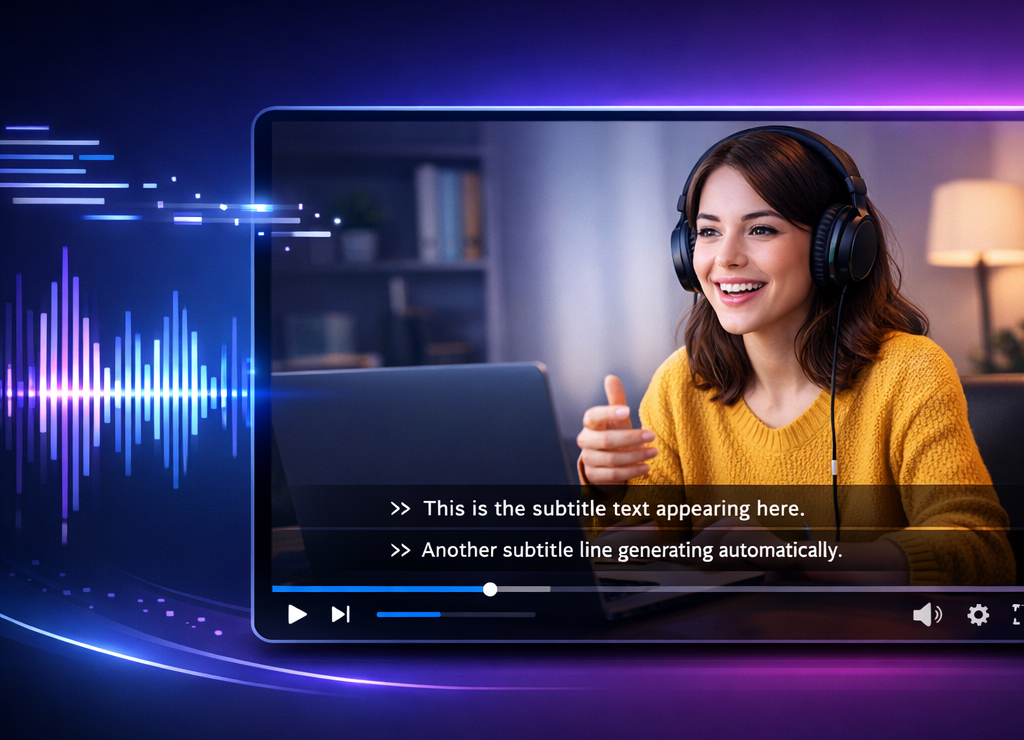
Subtitle a video manually takes 2 to 4 hours. WithAI, It's done in 5 minutes.. Description is the most complete (editing text + subtitles + export SRT). Submagic is the fastest for Shorts/Reels. ElevenLabs Scribe offers the most accurate transcription. This guide shows you how to do it with each toolStep by step.

Descript, The most complete (editing + subtitles)
Editing textual, auto subtitles, SRT export, deletion of « Uh. ». Free 1 hour/month plan.

Submagic, The fastest (viral subtitles)
Animated subtitles for TikTok/Reels/Shorts in 2 min. Key words highlighted.

ElevenLabs Scribe, The Most Precise (Transcript)
The most accurate ASR model on the market. Export SRT. Ideal for long content.

Filmora, The most accessible (editing + subtitles)
Video editing complete + subtitles AI integrated. Ideal beginners.
80% of social media videos are watched Without sound. On YouTubesubtitled videos have an average retention rate of 12-15%. And Google index the text of the subtitles, which boosts your SEO. In short: not captioning your videos is losing audience, commitment and SEO.
Problem: manually subtitle a 10-minute video takes 2 to 4 hours. It's a painful, repetitive and time-consuming job. Fortunately,AI transformed this process. In 2026, the automatic generation of subtitles was quick, accurate and accessible. This guide Show you how to do with 4 tools different, step by step, depending on your format and budget.
Why subtitles became indispensable in 2026
The subtitles are no longer a « bonus », they are a production standard. This is why each creator should systematically caption their videos.
Accessibility. 466 million people around the world have hearing loss. In France, subtitling audiovisual content is encouraged by law and platforms promote videos accessible in their algorithms. It is also a question of inclusion for non-native Francophones.
Commitment. On Facebook, Instagram and LinkedIn, most users scroll in silent mode. Without subtitles, your video is seen but not understood. With animated subtitles (style Submagic), retention increases by 12 to 40% according to studies and formats.
SEO. YouTube and Google index the text of the subtitles. A video with a clean SRT file ranks better than a video without transcription. Free SEO for each published content.
Translation. Subtitles are the basis for multilingual translation. With a SRT file in French, you can generate subtitles in English, Spanish or Arabic in a few clicks, and reach a global audience without re-recording. The tools as ElevenLabs combine the transcription (Scribe) with the dubbing AI to automate the entire multilingual pipeline.
The time-saving. The calculation is simple: manually subtitle a 10-minute video takes 2 to 4 hours. WithAI, it is 5 minutes of generation + 10-15 minutes of editing and correction. On a rhythm of 4 videos a week, it's 12 to 16 hours saved per week. LAI does not replace human rereading, but eliminates 90% of mechanical work.
Method 1: Descript : full workflow (editing + subtitles)
Description is the most complete choice for the subtitling AI because it combines automatic transcription + editing text + export of subtitles in one interface. You edit the text, and the video shuts down automatically. That's the one.tool recommended for podcasters, YouTubers and long content creators.
Step 1: Import your video. Create a new project in Description, then drag and drop your video file (MP4, MOV, WAV, MP3). The transcription starts automatically from import.
Step 2: Check the transcript. Descript displays the text synchronized with the timeline. Each word is clickable, click it to go to the corresponding moment in the video. Correct any errors: proper names, acronyms, technical words. The initial accuracy is about 90-95% in French.
Step 3: Edit by text (the Descript superpower). That's where Descript stands out: delete a word in the text deletes the corresponding passage in the video. You're editing your video as a Word document. Remove « Uh. », hesitations, unnecessary passages, everything is done in the text. It's revolutionary to save time.
Step 4: Export subtitles. Go to File → Export → Subtitles. Choose the format: TRS (the most universal, compatible YouTube, Premiere, Final Cut), Mountain biking (web), or video with inlaid subtitles (hardcoded). If you export SRT, you can import subtitles into any software of editing or directly in YouTube Studio.
Step 5: Customize the style (optional). If you choose video export with embedded subtitles, Descript lets you customize the font, size, color and position of the subtitles. Not as pushed as Submagic for viral formats, but sufficient for professional rendering.
When to use Descript: long videos (YouTube, online courses, webinars), video podcasts, interviews, content that require editing + subtitles in the same workflow. That's the one.tool the most versatile. See our review Complete Descript and comparison Submagic vs Descript.

Method 2: Submagic : viral subtitles in 2 minutes
If your goal is maximize engagement on TikTok, Instagram Reels or YouTube Shorts, Submagic istool specialized. It does only one thing, subtitles, but it does it better than everyone for short formats.
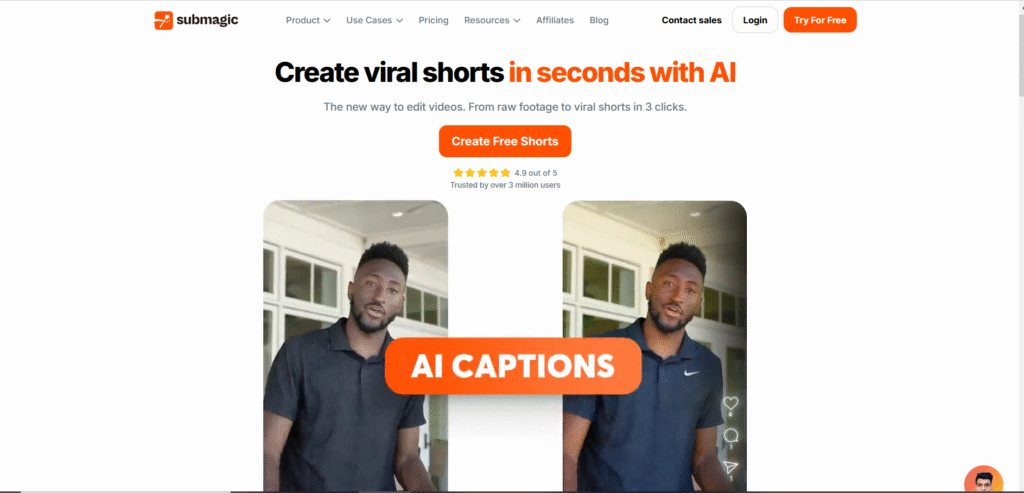
Step 1: Upload your short video. See you on Submagic, slide-down your video (ideally vertical, 15-90 seconds).
Step 2: LAI transcribes and stylizes automatically. In seconds, Submagic generates subtitles with an animated style, keywords are highlighted, transitions are dynamic, the rhythm is tied to the flow of speech. It's the format on social networks.
Step 3: Customize the template. Choose from the subtitle templates (colors, fonts, effects). You can also manually adjust the keywords to be highlighted. Submagic offers styles « Alex Hormozi », « Mr Beast » and other recognized viral templates.
Step 4: Export. Download the video with embedded subtitles, ready to publish directly on TikTok, Instagram or YouTube Short.
The difference with Descript: Submagic does not make video editing, it is only from subtitling. But for short formats, it is 2x faster and produces more visually engaging subtitles. The result is optimized for retention on social networks. The keywords appear in color, the transitions are dynamic, and the timing is set to the nearest word, exactly what the algorithms of TikTok and Instagram favor.
Attention to common errors with viral subtitles: Avoid highlighting ALL words (the effect is drowned), limit yourself to 1-2 keywords per sentence, and make sure the font is readable on a clear AND dark background, many creators forget to test on different scenes.
When to use Submagic : TikTok, Instagram Reels, YouTube Shorts, LinkedIn Video, stories. Everything that's vertical and short. See our review Submagic.
🔥 Test Submagic, viral subtitlesMethod 3: ElevenLabs Scribe: the most accurate transcription of the market
If your priority is transcription accuracyfor technical, medical, legal or multilingual content, ElevenLabs Scribe is the best choice. Scribe v2 is ranked as the most accurate ASR (Automatic Speech Recognition) model on the market in 2026.
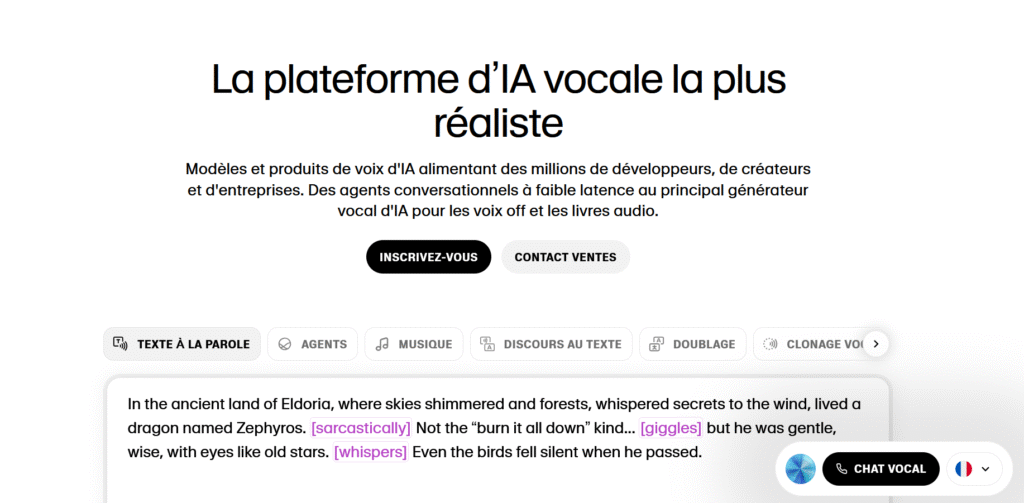
Step 1: Go to Scribe. Log in to ElevenLabs, go to the section « Scrib » (Speech to Text).
Step 2: Upload your audio or video file. Scribe accepts MP3, WAV, MP4 and most common formats. Select the source language.
Step 3: Recover the transcript. Scribe produces a transcription with Time stamping at word level, diarization of speakers (who speaks when) and detection of sound events (laughs, applause). The precision in French is exceptional, well above the YouTube Self-captions.
Step 4: Export to SRT. Download the generated SRT or ATV file. Import it in YouTube Studio, Premiere Pro, DaVinci Resolve or any software of editing.
The Scribe Advantage: precision. Where the tools free of charge (YouTube, Whisper) make 85-90% precision, Scribe reaches 95-98% on French, which drastically reduces the time for rereading and correction. It's also the only one tool who automatically detects speakers for multi-stakeholder interviews and podcasts.
When to use ElevenLabs Scribe: long content to transcribe with high precision, multi-locutor interviews, technical content, generation of SRT files for import into other software. The free plan includes transcription time. See our ElevenLabs complete test.
Method 4: Filmora: the all-in-one accessible for beginners
Filmora Wondershare is a software video editing the general public that has integrated a generator of subtitles AI directly into the timeline. This is the easiest option if you want to mount your video AND add subtitles in the same software, without going through a tool external.
Step 1: Import your video to Filmora. Create a new project and drop your video on the timeline.
Step 2: Run the transcript AI. Go to Tools → Speech-to-Text. Select the language (French) and click OK. LAI transcribe audio and automatically create a file of subtitles synchronized on the timeline.
Step 3: Customize subtitles. Filmora offers complete control over the style: font, size, color, position, shadow, background. You can also modify the text and adjust the timing directly in the timeline.
Step 4: Export. Export the video with embedded subtitles, or generate a separate SRT file. Filmora also supports the automatic translation of subtitles, useful if you want to publish in several languages.
When to use Filmora: if you are starting to editing and that you want a single software to do everything (cutting, effects, transitions, audio AND subtitles). It's also the best choice if you're already editing your videos on Filmora. See our review Filmora.

Need full text instead of subtitles? For transcribe a video into text (Word document, article, report), six methods were tested, including Whisper locally and ElevenLabs Scribe.
Summary table: what tool according to your need
| Criteria | Description | Submagic | ElevenLabs | Filmora |
|---|---|---|---|---|
| Specialty | Editing + subtitles | Viral subtitles | Accurate transcript | Editing all-in-one |
| Ideal format | Long (YouTube, podcast) | Short (Short, Reels) | Long (interview, tech) | All formats |
| Accuracy FR | ~92 % | ~90 % | ~97 % | ~90 % |
| Export TRS | ✔ | ✘ (video inlaid) | ✔ | ✔ |
| Video editing | ✔ Editing text | ✘ | ✘ | ✔ Classic timeline |
| Animated subtitles | Basic | ✔ Virals (protemplates) | ✘ (Gross TRS) | Basic |
| Free plan | Media 1h/month | Limited test | 10 000 credits/month | Watermark test |
| Paid price | From 16 $/month | From 9 €/month | From 5 $/month | From 3.50 €/month |
What tool of the subtitling AI Is made for you?
🎯 Find your tool at a glance
→ Description, editing text + subtitles + export SRT, the most complete workflow
→ Submagic, viral animated subtitles in 2 min, pro templates included
→ ElevenLabs Scribe, 97 %+ precision, diarisation, own SRT export
→ Filmora, editing + subtitles + translation in the same interface
→ YouTube Studio (auto subtitles), less precise but free and unlimited. Or ElevenLabs Scribe free plan.
7 tips for perfect subtitles
LAI does 90% of the work. The remaining 10% determine whether your subtitles are « correct » or « Professionals ». Here are the best practices.
1. Always read the first 30 seconds. That's where IAI makes the most mistakes, she hasn't yet « set » the context. The proper names and technical terms of the beginning are often poorly transcribed.
2. Check for proper names and acronyms. LAI does not know your brand, products or stakeholders. Make a Ctrl+F on important keywords and manually correct them.
3. Adjust the timing of transitions. Sometimes a subtitle appears half a second too soon or too late. The tools as Description and Filmora allow to adjust to the frame in the timeline.
4. Limit to 2 lines and 42 characters per line. This is the readability standard. Beyond that, the text is too dense and the spectator picks up. The tools Professionals follow this rule automatically, but manually check if you are editing the SRT.
5. Export SRT instead of embedded subtitles. The SRT gives you control: you can import in YouTube (deactivated subtitles), modify it later, or translate it. The inlaid subtitles (hardcoded) are definitive, impossible to modify after export.
6. Test in silent mode before publishing. Watch your video without sound and with subtitles. If you understand the message, it's okay. If you are lost, it lacks context in the text, add descriptions of actions or sounds when it is relevant.
7. For Shorts: Use animated subtitles. Static subtitles work on YouTube long format. On TikTok and Reels, animated subtitles with color keywords (style Submagic) increase retention from 15 to 40 %. It is an investment that can be seen directly in metrics.
To go further in optimizing your video workflow, check out our guide video editing AI automatic and our selection oftools AI to create videos YouTube.
Bonus: the ultimate combo for creators YouTube. The most efficient workflow in 2026: film and mount your video in your usual software → export → pass audio in ElevenLabs Scribe for an ultra-precise transcription → import the SRT in YouTube Studio → use Submagic to create a Short with viral subtitles from the same content. Result: a long video subtitled + a Short viral, two content for the price of one.
And if you need voice-over AI to complete your videos, check out our comparison of the Best AI in English and our guide for use a voice AI free of charge.
In summary: on subtitling AI It is no longer an option in 2026, it is a production standard. The choice oftool depends only on your format: Description for editing complete + subtitles on long content, Submagic for viral short formats, ElevenLabs Scribe when accuracy is critical, and Filmora if you start and want everything in one software. Start with the free plan of each tool, test on a real video, and adopt the one that fits best into your workflow.
The voiceover often follows the subtitling in the same project. To choose yours, see ElevenLabs vs Speechify.
✨ Start with Descript, subtitles AI in 5 minFAQ
What is the best tool to generate subtitles automatically?
Descript is the most complete (editing text + subtitles + export SRT). Submagic is the fastest for short formats (TikTok, Reels). ElevenLabs Scribe offers the best transcription accuracy. The choice depends on your video format.
Can we generate subtitles for free?
Yes. YouTube Studio generates automatic subtitles for free. Descript offers 1 hour of media/month on its free plan. ElevenLabs Scribe includes free transcription (10,000 credits/month). The accuracy of tools free is lower than paid.
What is the accuracy of subtitles AI in French?
85% (YouTube 97%+ (ElevenLabs Scribe). Descript and Filmora reached 90-92%. A review of the first 30 seconds and proper names is always recommended.
SRT or inlaid subtitles: what to choose?
The SRT is preferable: modifiable, importable in YouTube, traductible. Encrusted subtitles are required for TikTok and Reels where SRT files are not supported.
Do subtitles improve SEO YouTube ?
Yes. YouTube index the text of SRT files. Your videos appear in the search results for queries contained in the subtitles. This is free SEO for each video published.