A video shot on the smartphone five years ago, an old digital family file that pixels, a rush pro filmed against the day too granular: I receive weekly requests from friends or readers who want to revive these videos. Good news, video improvement models by AI in 2026. This article compares eight tools that I tested on the same rushes, with a verdict per case of use at the end.
Objective: allow you to choose the right one tool depending on your need (mobile, old archive, blurred webcam, extract YouTube), your budget, and the level of quality you target (720p → 1080p, 1080p → 4K, deep restoration).
Is it possible to improve a blurred video with AI ?
Yes, in most cases. L AI video improvement works according to two complementary principles: super-resolution (the algorithm reconstructs missing details from models trained on millions of high definition videos) and the deruction (deletion of the video grain while preserving natural textures).
The results vary according to three factors. First the source: a 480p video filmed in 2015 on an iPhone goes back to 1080p, a 240p rush from a VHS requires a much heavier restoration. Then the type of blur: a focus blur does not correct, a compression blur or low resolution yes. Finally,tool : a pro engine like Topaz AI Video produces a very different result of a free online upscaler.
What AI Don't do it, it's inventing what's never been there. A blurred face remains blurred: the algorithm can smooth it, not rebuild real features. This limit is structural, not a question of tool or budget.
Essentials
- Topaz Video AI remains the pro reference (paying, cinema result)
- CapCut and Canva do the job in 30 seconds for free for social purposes
- Adobe Firefly Video Upscaler arrives in Creative Cloud late 2026
- Krea AI and HitPaw are the best compromise quality/price outside Topaz
- The 4K passage is realistic since 1080p, not since 480p without artifact
- A video shot blurred at source cannot be « Unladen » by l AI
The 8 best AI Tools to improve a video in 2026
Here's the comparison quick, followed by detailed sheets. I tested every tool on the same corpus: two 720p mobile videos, a digitized VHS archive 480p, an extract YouTube 1080p compressed, and a webcam rush Zoom.
| Tool | Prices | Max output | Made | Our note |
|---|---|---|---|---|
| Topaz Video AI | 299 $ (licence) | 8K | Cinema | 9,5 / 10 |
| HitPaw Video Enhancer | from 25 $/month | 8K | Very good | 8,7 / 10 |
| Adobe Firefly Video Upscaler | included Creative Cloud | 4K | Very good | 8,5 / 10 |
| Krea AI | 10 $/month (limited free) | 4K | Good | 8,2 / 10 |
| Canva Video Upscaler | free / Pro 12 €/month | 4K | Good | 7,8 / 10 |
| CapCut AI Upscaler | free | 4K | Correct | 7,5 / 10 |
| Media.io Video Enhancer | freemium 15 $/month | 4K | Correct | 7,3 / 10 |
| Fotor Video Enhancer | free / Pro 9 $/month | 4K | Suitable | 7,0 / 10 |
Topaz AI Video: the reference for pros
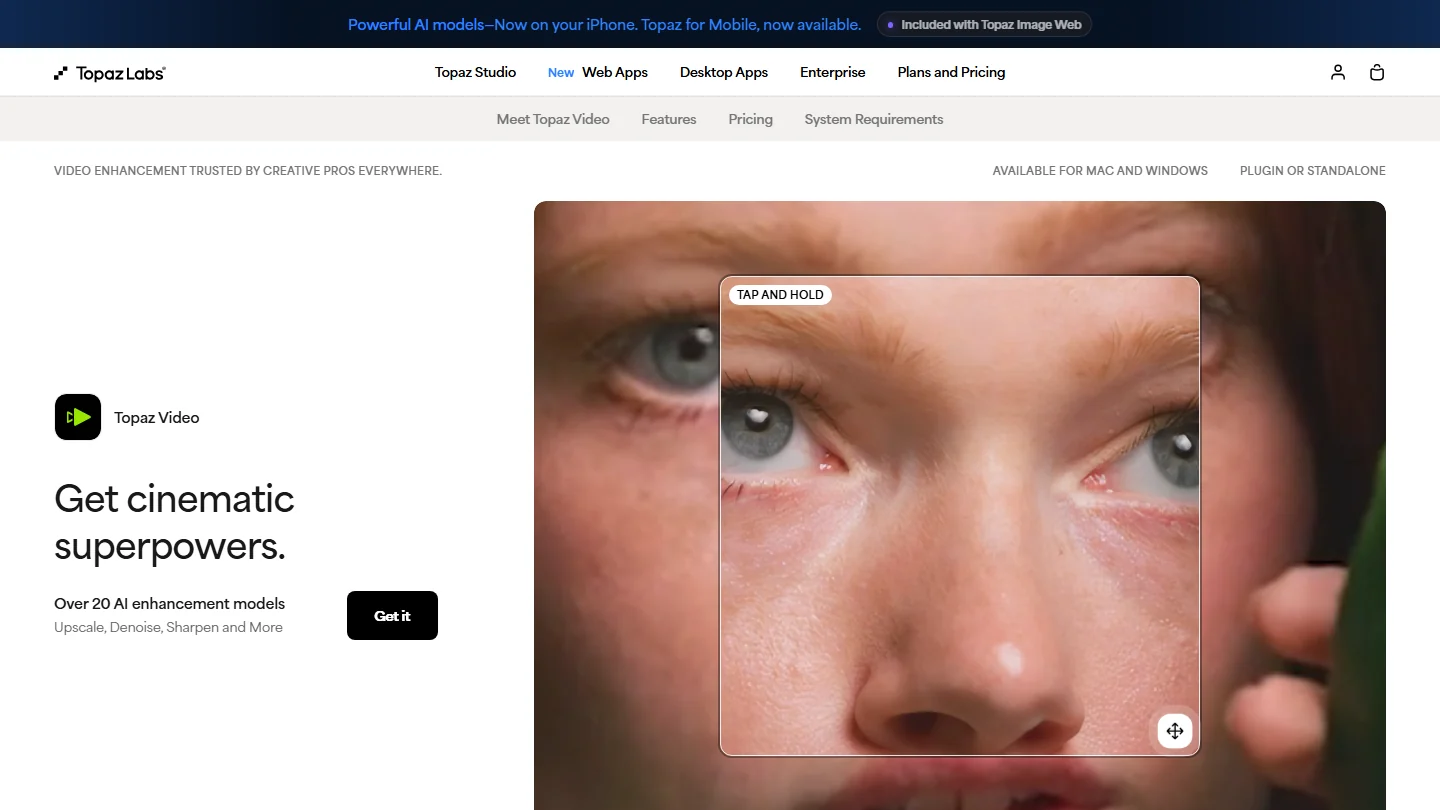
Topaz AI Video remains without serious competition for heavy restoration. I went up a clean 480p VHS in 4K in a single pass, with time-draining and interpolation of images for a smooth 60 fps rendering. L tool runs in local (Mac or PC), which explains the price: the lifetime license is around 299 $ but quickly simmers in regular use.
Highlights: multiple models depending on the source (Proteus for realism, Iris for faces, Rhea for low-light), Apollo interpolation to go from 30 to 60 fps, workflow batch to process several videos in a row. Apprenticeship takes an evening, and the rendering is greedy in GPU (counting 15 to 45 minutes for a minute of 4K video on a RTX 4070).
HitPaw Video Enhancer: the best pro-general public compromise
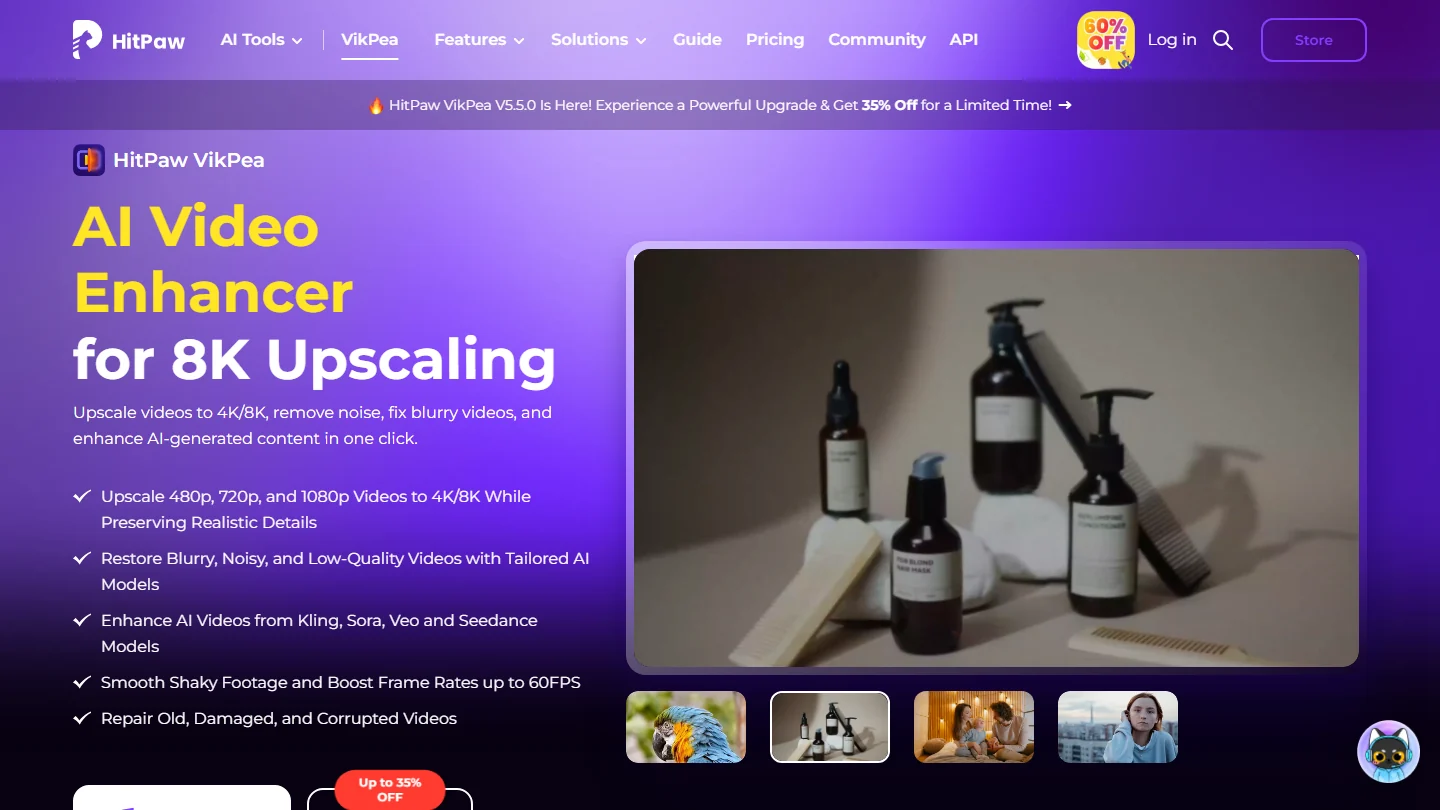
HitPaw is positioned between Topaz (too technical for many) and tools online (too limited). The interface offers seven preset models according to the source: old film, animation, faces, night scenes, low resolution extract, colouring, general debusting.
On my VHS 480p rush, the rendering is 85% of what Topaz comes out with twice as much trial. The model « Face Model » remains bluffing on poorly exposed portraits. The application is available as a single licence (from 89 $) or on a monthly subscription. A free trial allows you to process up to five videos with watermark before switching to the paid version.
Adobe Firefly Video Upscaler: integrated with Creative Cloud
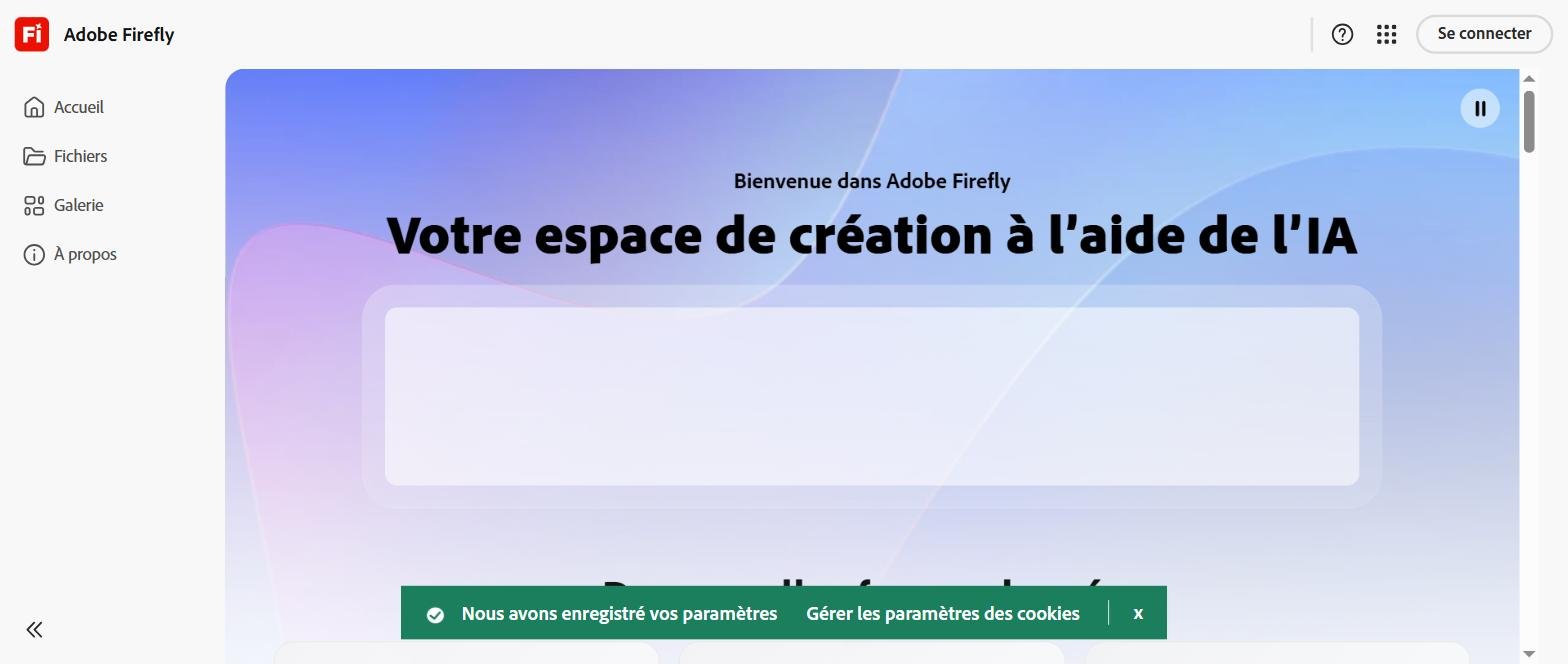
Adobe has launched its own video upscaler mid-2026 AI Within Firefly. Two advantages: native integration with Premiere Pro and After Effects (not intermediate export), and the model driven on the Adobe Stock media library, giving a very clean look on natural film scenes.
For Creative Cloud subscribers, this is probably the best option in 2026: you stay in its existing workflow, save rendering time (Adobe side processing), and 4K output quality is comparable to HitPaw. The constraint remains the number of credits included in the subscription, which can quickly run out on a long format project.
Krea AI: the surprise 2026
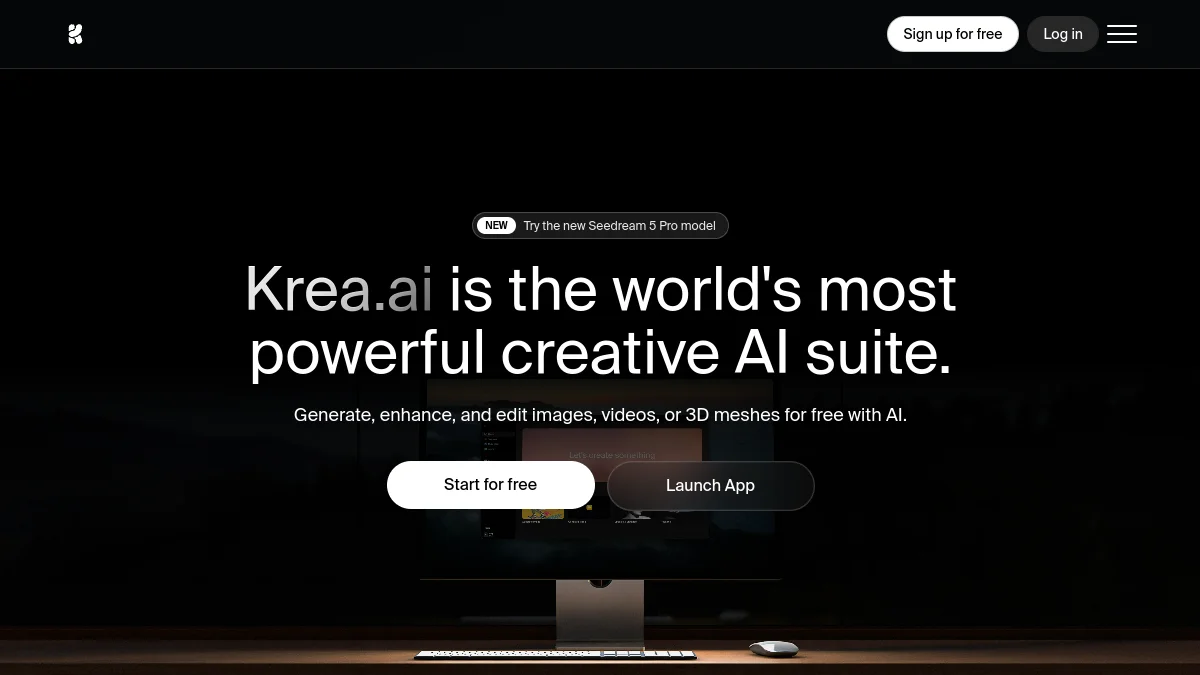
Krea AI started the real-time image generation and was diversified into video in 2026. The proposed L Voluntaryly clean interface, onboarding immediate.
At 10 $ per month, this is the best value for money outside Topaz. The free version allows to test on very short clips. Bemol: Long formats (beyond three minutes) sometimes give artifacts on fast movements.
Canva Video Upscaler: the easiest to use
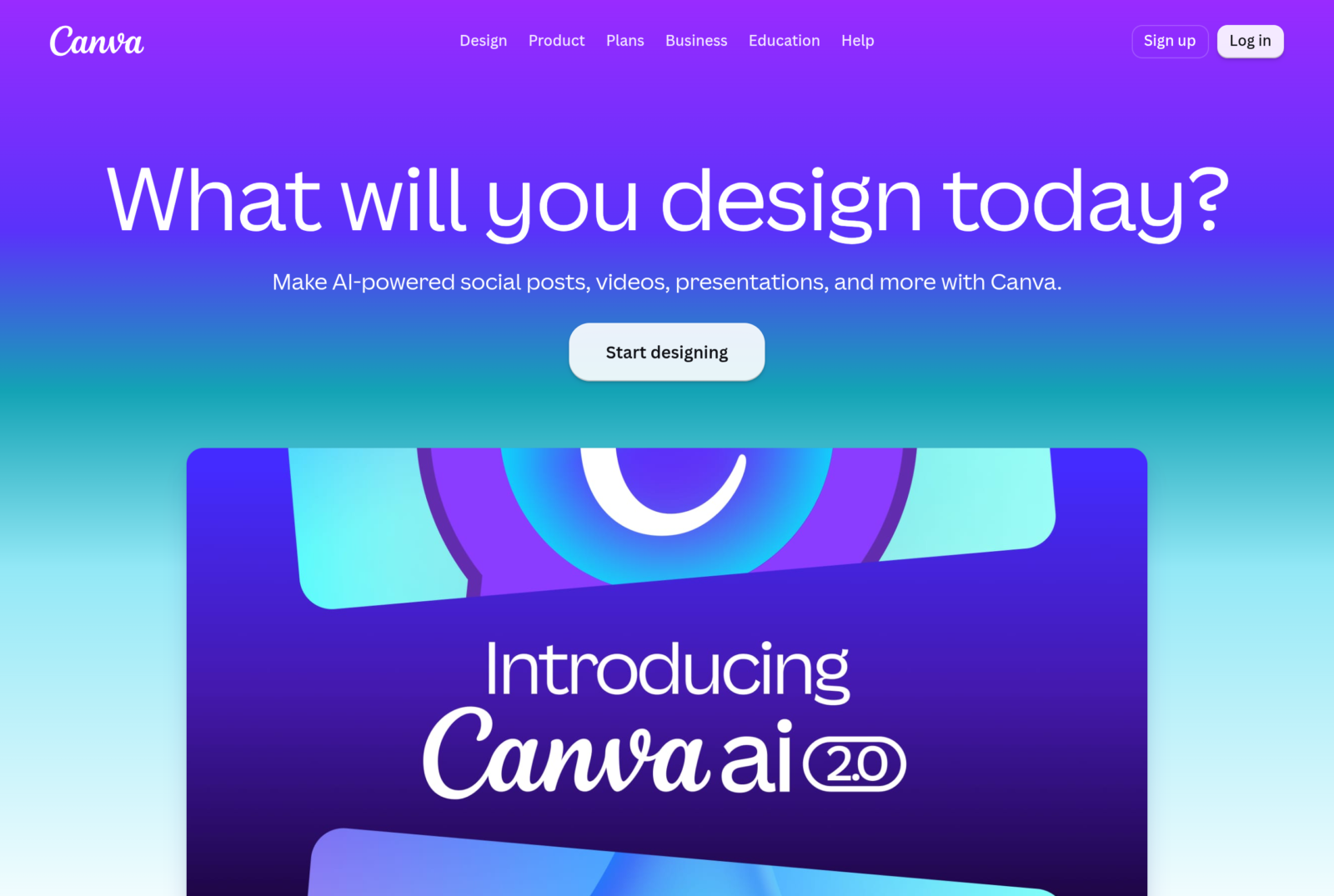
Canva offers its own tool video enhancement, accessible without installation and free in its basic version. Three clicks are enough: you load the video, choose the output resolution, download. The rendering is correct for social uses (networks, blogs, internal presentations).
What's missing: fine control (no choice of model, no separate dedusting), and free version cap files to 100 MB. For occasional use, this is the ideal front door. For regular use, you quickly switch to something else.
CapCut AI Upscaler: free and integrated with editing
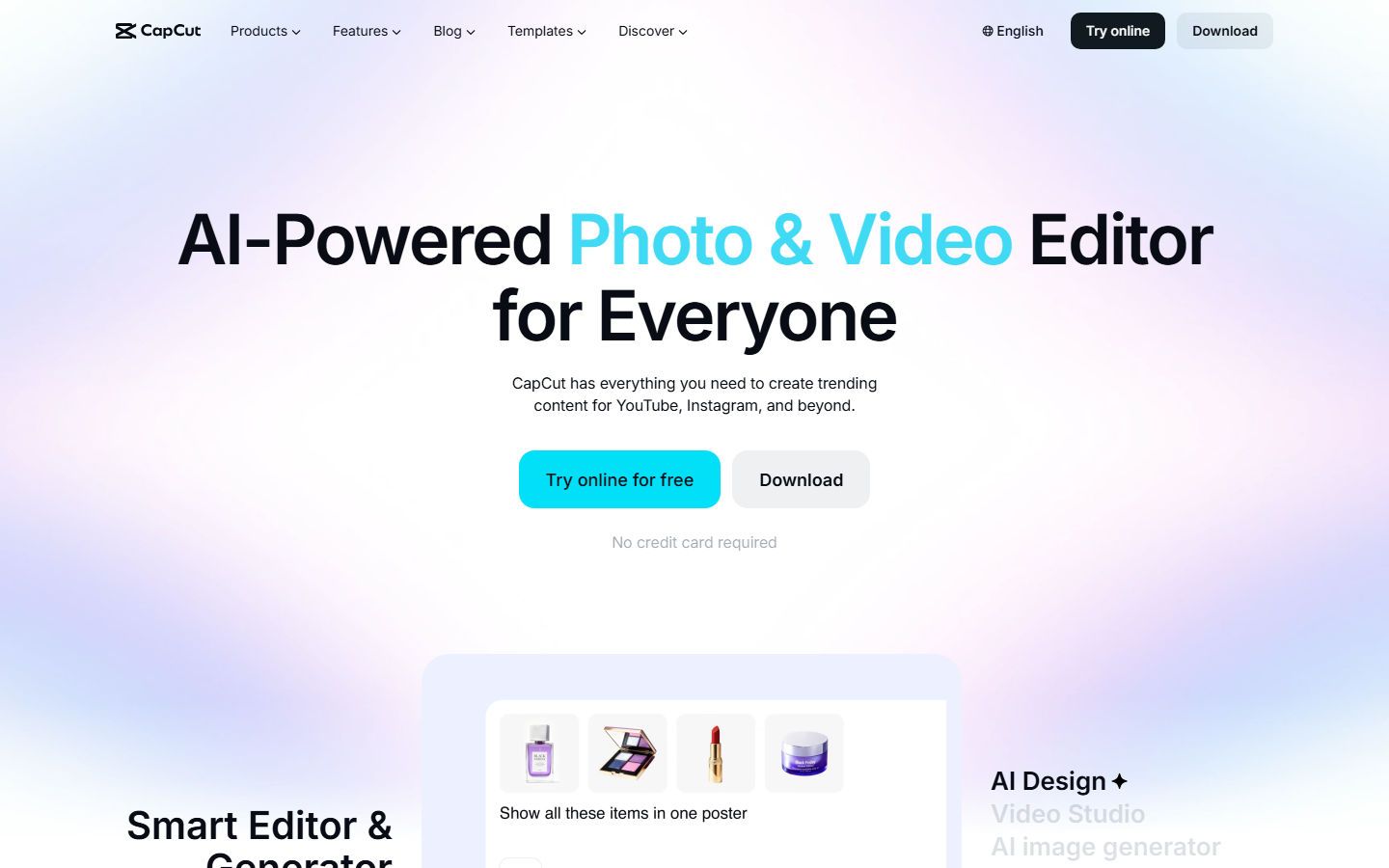
The advantage of CapCut is that the upscaler is integrated into the video editing software. We import the video, we apply the Video Upscaler effect in the timeline, we export in 4K. No round trip between tools. The rendering is correct for short content (TikTok, Reels, Shorts) but shows its limits beyond.
Compared to Canva, CapCut offers more control (target resolution choice, fine grain fit, colorimetry) while remaining free. This is the logical choice if you are already editing your short videos in the CapCut ecosystem. To go further, our Complete Comparison of the tools of the editing AI details all options.
Media.io Video Enhancer : freemium honest
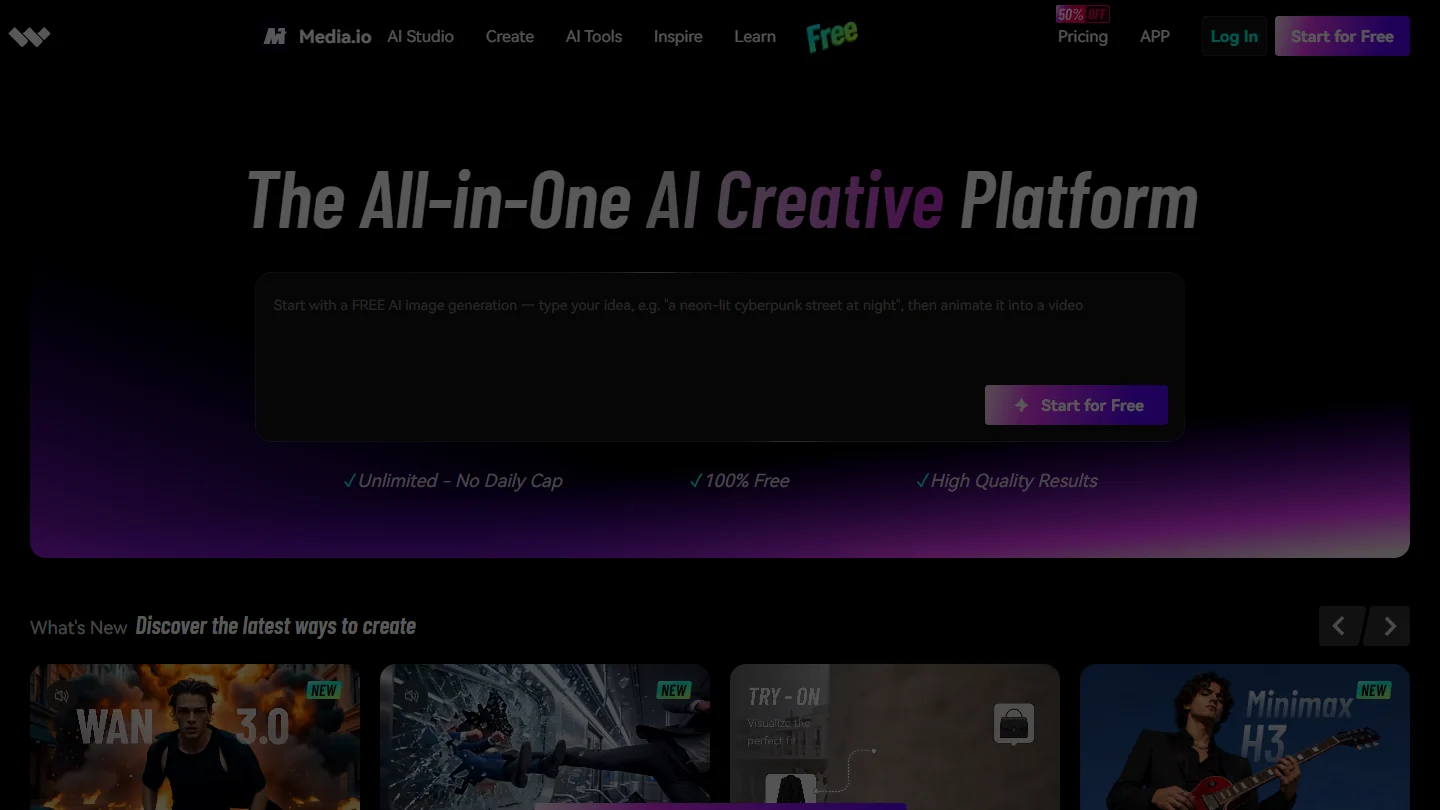
Media.io is edited by Wondershare, as Filmora. The online suite includes the upscaler, a scrubber, a stabilizer, and a black and white video colorator. The set works in a browser, without installation, and the free offer allows you to test on clips up to two minutes.
The 4K rendering is clean on native 720p, correct on 480p, average on VHS. It's a tool convenient to troubleshoot but not for regular production: at the Pro tariff (15 $/month), as much invest in HitPaw or Krea.
Fotor Video Enhancer: the general public
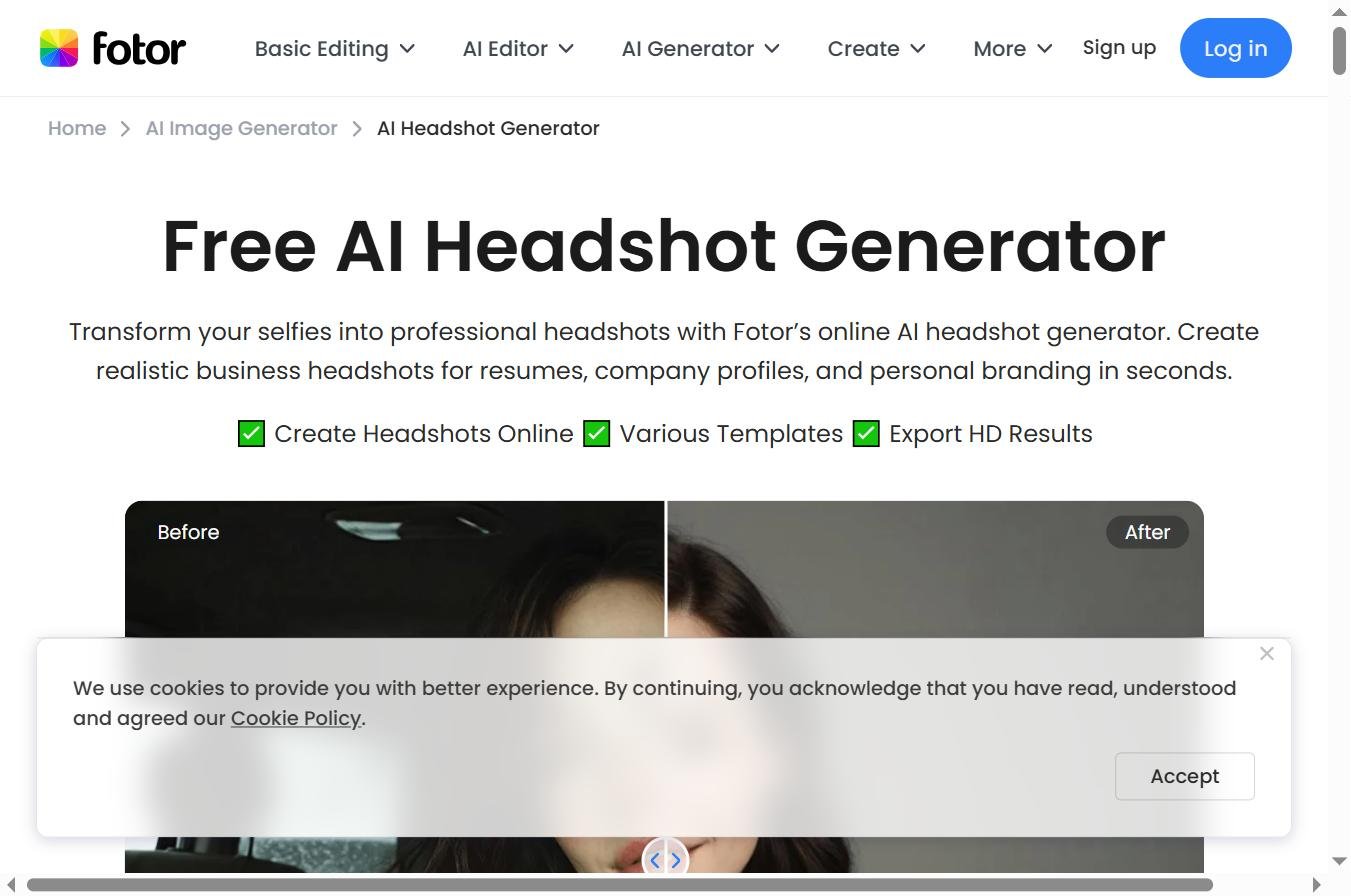
Fotor clearly targets beginners. Step by step guided interface, limited choice but fast result. The free version adds a watermark, the Pro subscription to 9 $/month unlocks 4K without mention.
This is correct for a personal video to improve once a month. It's not the same.tool for a regular content creator: output quality quickly caps, and rendering on faces is below other options of the comparison.
How to improve the quality of a video for free
Three options actually work free. The first one: CapCut. This is the most complete option, without watermark, without time limit, with a correct 4K rendering. Ideal for regular social content.
The second is: Canva Video Upscaler. Three clicks, no installation, free as long as the file is less than 100 MB. Perfect for troubleshooting on a short video.
The third: Krea AI free version. It limits the duration of the clips processed, but the rendering is the best of the free batch. Reserve for high quality short videos.
What doesn't really exist for free: the deep restoration of VHS or old videos. The tools free make honest upscaling on 720p or 1080p, but the 480p family archive deserves a pass on Topaz or HitPaw in temporary trial for a correct result.
How to pass a video in 4K with AI
The 4K passage is realistic since the native 1080p: all the tools of the comparison You can do it properly. Since the 720p, the result has been good with Topaz, HitPaw or Adobe. Since 480p, we get a file « in 4K » but which does not have the definition of a true native 4K: it is extreme upscaling, useful for archiving but visible to the eye on large screen.
The standard workflow for a clean 1080p → 4K passage: import the video into the tool, choose output resolution (2160p), select the model adapted to the source (natural, old film, faces), launch rendering, export. On Topaz or HitPaw in local, 15 to 60 minutes depending on the length and power of GPU. Online, it's instant but with artifacts more visible on fast movements.
Old family films often pose a second problem after the blur: they are in black and white. We explain how to give them back colors, with a video model or by calibration, in our guide for Colour a black and white photo or film with AI.
Choose according to your use case
Old family video or VHS archive
Topaz AI Video as a priority, HitPaw Video Enhancer as an alternative. Deep restoration requires a local engine with several complementary models. The tools online saturate on this use case.
Mobile video for social networks
CapCut first (free and integrated into the editing), Canva in troubleshooting, Krea AI for a higher rendering if the video counts. No need to go to pay if you stay on short content format 9:16.
Extract YouTube compressed to re-upload
HitPaw or Krea AI. Compression YouTube destroys part of the signal, these two tools reconstruct properly without introducing too visible artifacts. Adobe Firefly does as well if you are already on Creative Cloud.
Webcam blurred in video or Zoom recording
Media.io or Fotor are enough: the signal is already in 1080p most of the time,AI just needs to clean the compression and smooth slightly the rendering. No need to pull out heavy artillery.
Rush pro up front editing
Adobe Firefly if you are already in Premiere Pro, otherwise Topaz in batch before import into the NLE. The pro pipeline passes through a controlled rendering, not an online upload whose conservation of sources is unknown.
Frequently Asked Questions
What is the best free software to improve the quality of a video?
CapCut remains the best free choice: rendered correct 4K, no watermark, no time limit, integration into the timeline of editing. Canva and Krea AI in free version are good alternatives for one-time use.
How to improve the quality of a blurred video?
A compression or low resolution blur corrects well with an upscaler AI (Topaz, HitPaw, Adobe Firefly). A blurring of focus is not correct:AI can smooth the image but not rebuild details that have never been captured at the source.
How to render a 4K video?
An upscaler AI passes a 1080p video in 4K in one pass. The rendering has been clean since 1080p, correct since 720p, artificial since 480p. Standard workflow: import, choose 2160p output, select the model adapted to the source, launch rendering.
Improvement AI Does it work on old VHS videos?
Yes, with tools specialized in restoration (Topaz AI Video as a priority, HitPaw as an alternative). It is often necessary to chain several passes: dedusting, restoration of colors, upscaling, interpolation of images. A clean rendering requires 30 to 60 minutes of processing for one minute of video.
How much does a video upgrade cost AI quality?
The free covers social uses and troubleshooting. For regular catering, there are 10-25 dollars per month (Krea, HitPaw) or a lifetime license around 299 dollars (Topaz). Creative Cloud subscribers access Firefly Video Upscaler at no additional cost.
Video enhancement by AI has reached a level that exceeds old post-production software on most cases of consumer use. Topaz remains king for demanding restoration, but tools Free as CapCut or Canva solve 80% of daily needs in three clicks. The real question is no longer « Is it possible? » but « what tool for which type of source ». To go further on the AI Tools video in general, check out our comparison of the AI generators video free and our guide software editing AI.