A PowerPoint presentation sent by email, without anyone to comment on it, loses half its interest. The voiceover solves the problem: the medium reads itself, at the right pace, as if the speaker were there. Good news, we no longer need to lock in a closet with a microphone to get it. One AI Voice Well chosen does the work in a few minutes, provided you follow a clean method. This is the one that is applied, with the native PowerPoint functions on one side and the generators of the other.
Contents: Essential · Put a voice on PowerPoint · Save Your Own Voice · The method with a AI Voice · The tools compared · A sounded PowerPoint that doesn't sound robot · Dictating text · What software to save · FAQ
📌 Essentials
- Three ways : save your own voice in PowerPoint, insert audio files generated by a AI (Murf, ElevenLabs), or entrust the entire slideshow to a video platform like Synthesia who reads your notes.
- PowerPoint on the Web can't record a narration : You need the desktop version (Microsoft 365, 2019, 2021, 2024 or 2016) on Windows or Mac.
- The method AI most reliable A slided audio file, automatic playback, sound-time-based transition, then export to MP4.
- Free plans help but limit : 10 minutes of voice without download at Murf, about 10 minutes without commercial license at ElevenLabs (reported 11.10.2026).
- The script counts more than the voice : short sentences, acronyms written as they speak, an idea by slide.
How to put a voice on PowerPoint?
There are three paths, and they do not serve the same needs. The first is native narration: PowerPoint records your microphone while you scroll slides, and memorizes the timing. It's free, fast, but everything rests on your voice, your microphone and your ability not to scramble on slide 14.
The second path consists in generating the voice elsewhere, in a tool then insert the MP3 files into the slideshow. This is the method recommended for internal training, pitch sent to investors or e-learning module: the voice remains stable from beginning to end, and correcting a sentence does not require re-recording.
The third path comes out of PowerPoint. Video platforms like Synthesia directly import the .pptx file and turn the notes of the speaker into a script read by a voice or even by an avatar. The result is no longer a presentation, it is a video. Useful if support should end on YouTube, on an LMS or intranet.
| Method | Cost | Implementation time | For whom |
|---|---|---|---|
| Narration native PowerPoint | Free (licence Office) | The time of the presentation, plus the covers | Course, meeting, internal support where your voice counts |
| AI Voice inserted slide by slide | Free at a few tens of euros per month | 30 to 60 minutes for 15 slides | Training, pitch, e-learning, content to update |
| Import to a video platform AI | Subscription (Synthesia from 18 $/month in annual) | Quick if notes are clean | Video with avatar, online streaming, translation |
How to save audio to PowerPoint with your own voice?
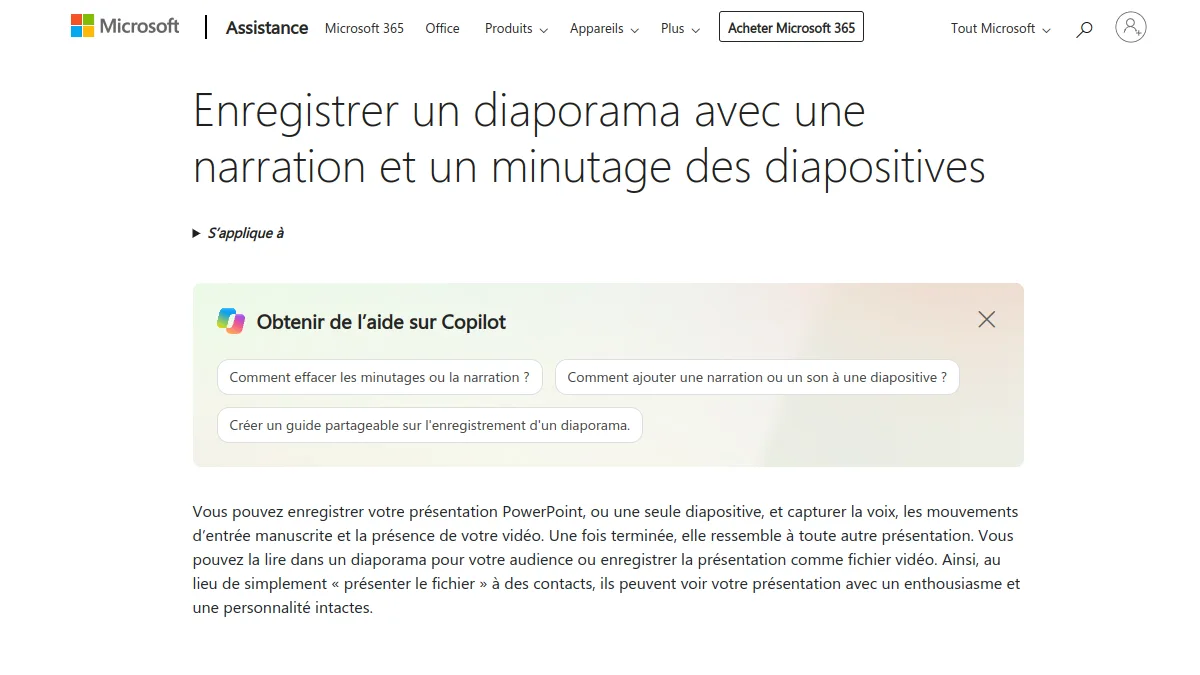
Even if you intend to go through AI, knowing the native narrative helps : it is she who manages the timing and the video export. Microsoft has reviewed the interface in recent months, so there are two versions of the menu depending on your installation. The Microsoft official help page details both.
On Windows with Microsoft 365 (new interface)
- Open the tab Registration Tape, then click Save.
- Choose View: Mode Telepromptor scroll your notes to the screen, convenient to read a script without looking elsewhere.
- Turn on the microphone, turn off the camera if you don't want to appear inlay.
- Click Start recording, wait until the countdown is over, then move with the arrows.
- Wait until the end of each transition before speaking: the sound is not captured during the transitions.
- A missed slide deletes itself and redones itself, without repeating the whole slideshow.
On Windows in classic interface and on Mac
In classic interface, the button is in the tab Slideshow, under the name Save slideshow. The upper half of the button starts from the active slide, the lower half proposes to start from the beginning. On Mac, we go through the tab recording studio Registration ; N or Space keys move forward, P goes back, Escap leaves.
⚠️ Attention: PowerPoint for the Web does not support recording of a slideshow. If you only work in the browser, you will need to go through a separate generated voice and then insert audio files, or install the desktop version.
To insert an already recorded sound, the path has been the same for years: tab Insertionthen Audiothen Audio on my PC. A speaker icon appears on the slide. This is exactly what we're going to exploit with the AI Voice.
How to achieve a voiceover with AI For a presentation?
The temptation is to stick the whole text in a generator to get a single long file and put it on the first slide. Bad idea. The day you change a number on slide 8, you have to regenerate everything, and synchronization with transitions becomes a puzzle. So we work slide by slide. It's a little longer at the start, much more comfortable then.
Step 1: Write script in the speaker's notes
Each slide receives its text in the notes area, at the bottom of the screen. A main idea, two or three sentences of support, a transition to the next. We write for the ear, not for the eye: no parentheses, no chip lists, sentences that say a breath. For length, a voice is raised around 130 to 150 words per minute. A slide that stays 30 seconds on the screen therefore supports about 70 words, not 200.
This work serves twice. The notes feed the generators and if you ever pass by Synthesia, they automatically become the script of the video.
Step 2: Generate audio from each slide
In Murf or ElevenLabs, create a text block by slide. Murf advises him himself in his guides : separating blocks makes setting much simpler. We choose a French voice, listen, adjust breaks and speed, then export each block in MP3 by naming it as the slide (slide-01.mp3, slide-02.mp3). This name seems silly, yet it avoids half the mistakes at the time of insertion.
For the choice of the voice itself, our comparison of the best AI voice-over in English reviews the renderings and accents. On a corporate presentation, we avoid voices too much « advertising » : a quiet and slightly serious tone passes better over 15 minutes than a very expressive voice that tireds quickly.
Step 3: Insert and Synchronize in PowerPoint
- On slide 1, Insertion > Audio > Audio on my PC, then choose slide-01.mp3.
- Select sound icon, tab Reading : set Start on Automatically and check Hide during presentation.
- Note the length of the file (it appears under the icon).
- Tab Transitions : check After and grab that time, plus a second of breath.
- Repeat for each slide.
Do not check Read background for the voice: this option makes the sound continue on the following slides, which is perfect for an atmosphere music, catastrophic for a narration. If you want a soft music under the voice, insert it separately on the first slide, in the background, with a low volume. Our guide of the music AI royalty-free Gives leads not to worry about rights.
Step 4: Export video
Once the slideshow is sounded, it is exported in MP4 to read everywhere, even without PowerPoint. In the new interface, it is Export then video. In classical interface, File > Export > Create Video, keeping the option that uses recorded minutes and narratives. On Mac, the File menu offers export in video format. A slideshow of 15 slides in Full HD takes a few minutes to generate depending on the machine.
💡 Tip: Always keep the sounded .pptx file in addition to the MP4. On the day a tariff or name changes, you regenerate a single audio file, replace it on its slide and re-export. With an MP4 alone, we'd have to do it all over again.
What AI Tools for voiceover What about a PowerPoint?
Three tools cover most of the needs. They don't look the same: two produce audio to insert, the third produces a complete video. The following prices were raised on 11 October 2026; They move often, check before paying.
Murf AI : thought for presentations and learning

Murf AI clearly addresses this use case. Its studio allows you to import slides in the form of images (Murf does not read .pptx files directly, you have to export them to JPEG or PNG from PowerPoint), to place a block of voices under each and to release either audio files or a video already synchronized. An additional module Google Slides also exist for those working in the ecosystem Google, and Murf proposes above all a official PowerPoint plugin : it turns the speaker's notes into narrative and adds audio to each slide, directly in the software.
On the price side, the free plan gives 10 minutes of generation but does not allow to download or use commercially: it is used to test the voices, not to deliver. The Creator Plan is announced around 29 $ monthly and 19 monthly $ per month annually by third party comparators; the official tariff page did not apply without a browser during our check, so we let you confirm the exact amount. Our review complete on Murf AI details the quotas.
ElevenLabs : the most natural voice for a tight budget
ElevenLabs does not propose any specific PowerPoint streams, but its French voices remain among the most natural ones we have heard, especially on the end-of-phrase intones that often betray synthetic voices. We generate each block in the tool Text to Speech, download MP3, and follow the method described above.
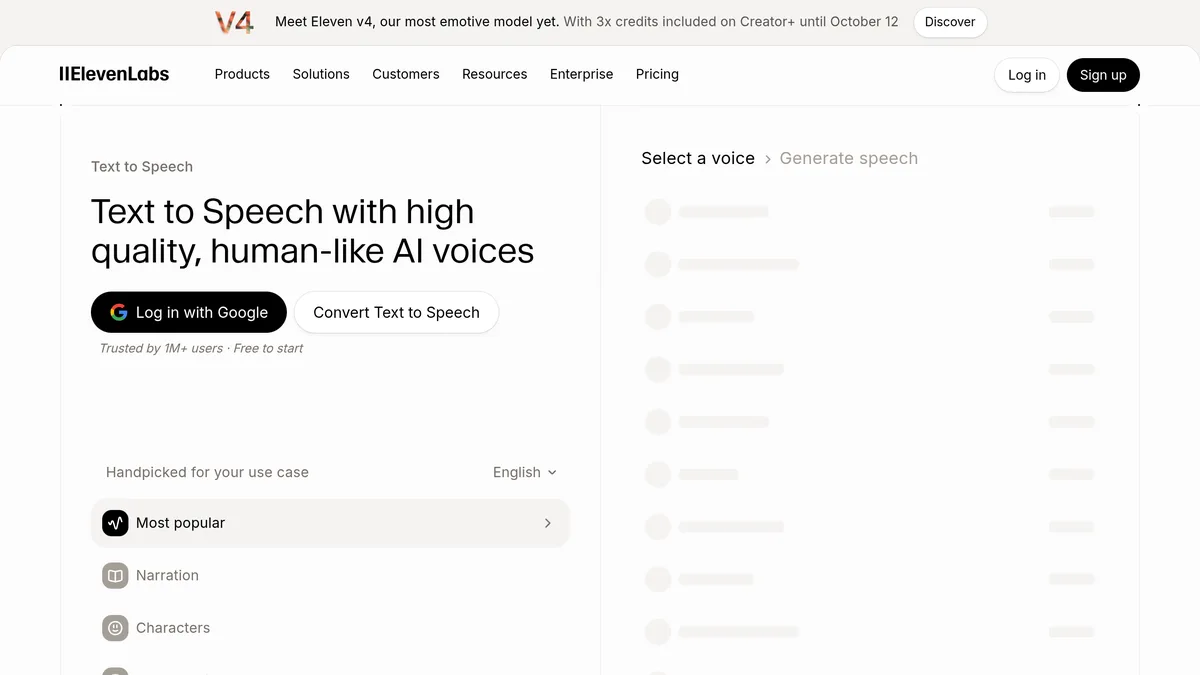
The grid noted on 11.10.2026: free plan at 10,000 credits per month (approximately 10 minutes of voice, without commercial license), Starter at 6 $ per month for 30,000 credits, Creator at 22 $ per month for 121,000 credits. A credit corresponds to a character in voice synthesis. For a presentation of 15 slides to 70 words, we turn around 6,000 characters: the free plan is enough for a trial, the Starter for regular use. The detail is in our guide ElevenLabs free.
Synthesia : when the presentation must become a video

Synthesia take the problem differently. From the home screen, the PowerPoint Import option accepts a .pptx file (up to 1 GB or 150 slides depending on the aid centre Synthesia). The notes of the speaker become the script of each scene, read by the chosen voice or l-avatar. One limit to know: PowerPoint animations are not imported. Texts, forms, images and tables remain editable in Synthesia.
Starter map is displayed at 29 $ monthly, or 18 $ annual per month. It adds about 12 minutes of video per month to the 10 minutes of the free plan. It's more expensive than voice alone, but you get a video ready to broadcast, with bonus translation. See our review Synthesia for details.
| Tool | What it produces | Free | First level paying | PowerPoint Import |
|---|---|---|---|---|
| Murf AI | Audio or video synchronised | 10 min, no download | Creator, from 19 $/month in annual | No (image slides), but official PowerPoint plugin |
| ElevenLabs | Audio MP3 | 10,000 credits/month, non-commercial use | Starter, 6 $/month | No |
| Synthesia | Video with voice and avatar | Limited free offer | Starter, 29 $/month (from 18 $ annual) | Yes, .pptx |
Test the French voices ElevenLabs
How to make a sounded PowerPoint that doesn't sound robot?
One AI Voice 2026 doesn't sound metallic anymore. What betrays a generated narrative is almost always the text, not the voice. Some reflexes change everything.
Write the acronyms and numbers as they say
« CA 2025: 1.2 M€ » will be read randomly. « Revenue 2025 is one decimal two million euro » I don't know. Same for acronyms: if your company says « ISD » When spelling, write it like this; If an acronym is pronounced as a word, leave it as it is and listen to the result. Foreign own names often deserve a phonetic spelling in the script.
Lethal
A comma is not always enough to create a break. Both tools allow for explicit insertion, and half a second before important information is enough to highlight it. We also add a second of silence at the end of the slide, via the timing of the transition, so that the listener has time to read what is displayed.
Keep one voice and one setting
Change voice or speed in the middle of a slideshow hears immediately. We note somewhere the voice, speed and style used, so we can regenerate a slide weeks later without breaking. On a long presentation, two alternate voices (one for content, one for examples) can work, provided it is an assumed and regular choice.
How do I dictate text on PowerPoint?
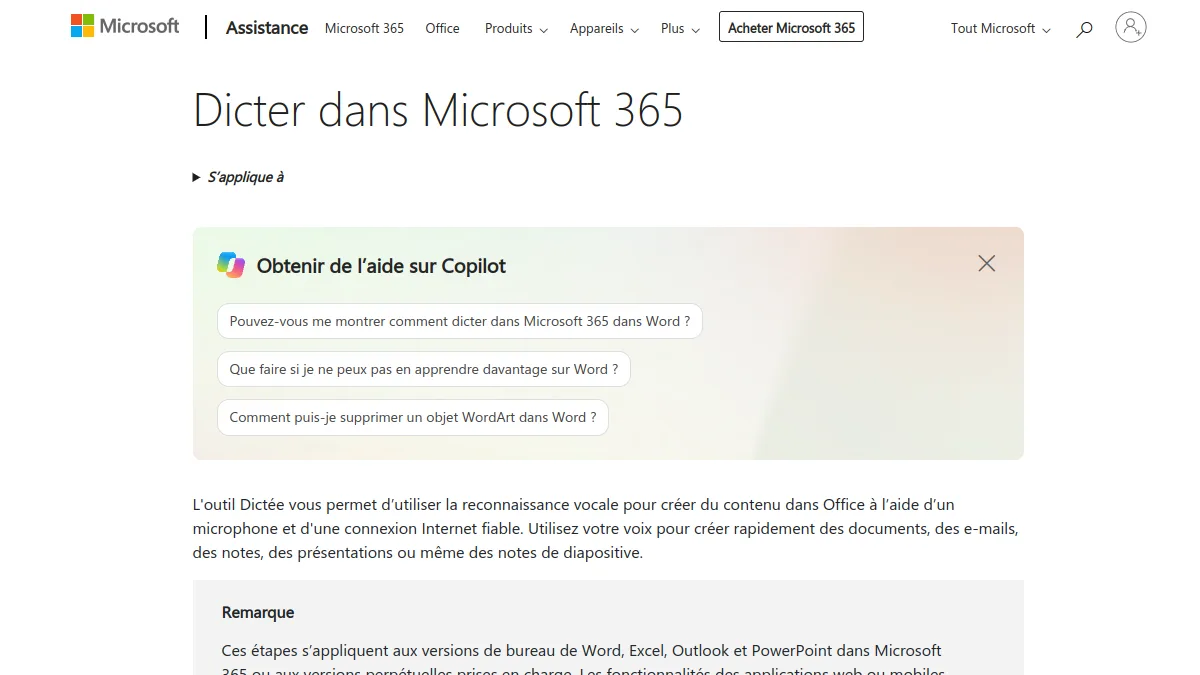
Beware of confusion: dictating is the opposite of voiceover. We talk, and PowerPoint writes. With a Microsoft 365 subscription, the button Dicter is in the tab Home. Click in a text box or in notes, activate the microphone and talk; punctuation is dictated (« comma », « point »). On Windows, the Windows + H shortcut also opens the voice input of the system, which can be used in any text box.
It is actually an excellent starting point for a voiceover AI. Many people write bad for oral but speak naturally. Say what you would say in front of the room, slide by slide, in the note area. Clean the rehearsals, and you have a script that just rings after you pass through the generator voice.
What software to record a voice?
If you prefer your own voice, PowerPoint is enough for a simple narrative. For a cleaner rendering, a dedicated audio software changes the deal: Audacity, free and free, allows to cut hesitations, reduce breath and normalize volume before inserting files. As for hardware, a micro USB correct to a few tens of euros makes a difference more clearly than any software setting.
In between, there is a hybrid path: clone your own voice. You record a few minutes,tool learn your stamp, then read your scripts with your voice. Our guide for clone his voice with ElevenLabs explains the procedure and the limitations. On an internal training updated quarterly, it is a real time-saving.
⚠️ Attention: Never clog the voice of a colleague or leader without his written consent. Platforms prohibit under their conditions, and a voice is a personal data. For a presentation broadcast outside, also check that your plan allows commercial use: this is neither the case of Murf free nor the free of charge.ElevenLabs.
Which method to choose according to your presentation?
A course or team meeting : native narration with your voice remains the most human. The participants know you, a synthetic voice would seem strange.
A training or onboarding that is regularly updated : AI Voice inserted slide by slide. Maintenance becomes trivial, and quality remains constant from one version to another.
A pitch sent cold or a commercial demo : AI Voice quality, export MP4, duration within three minutes. A pressed recipient rarely reads a .pptx, he willingly launches a video.
Multilingual e-learning module : import in Synthesia. Translation of scripts and voice into other languages are integrated, which avoids doing all the work for each version.
🎯 Verdict
For the majority of presentations, the winning combination remains simple: a clean script in notes, a voice ElevenLabs or Murf generated slide by slide, an automatic playback set to transitions, then an MP4 export. Synthesia is only justified if the medium must become a real video, with avatar or several languages.
FAQ: voiceover AI and PowerPoint
Can we put a AI Voice Free on a PowerPoint?
Yes, for personal use or a trial. The free plan ElevenLabs gives about 10 minutes of voice per month, enough for a short presentation, but without commercial license. Murf's allows you to listen to voices without downloading files.
Does PowerPoint have a AI Voice integrated for narration?
The Microsoft documentation, which was consulted on October 11, 2026, did not contain a function that generates a synthesis narrative integrated with video export. PowerPoint saves your voice and knows how to dictate text, but the synthesis voice comes from a tool external.
How long voiceover plan by slide?
Between 20 and 45 seconds in most cases, or 50 to 100 words. Beyond a minute on the same slide, attention is drawn: it is better to cut the contents into two slides.
Can we export a PowerPoint with voiceover MP4?
Yes. In the desktop version, the video export keeps the narratives and audio files inserted, as well as the cuttings. The MP4 file is then read on any device without PowerPoint.
The voiceover Does it work in PowerPoint for the Web?
Reading an inserted sound works, but recording a slideshow with narration is not supported in PowerPoint for the Web. It takes the desktop version on Windows or Mac to save and export properly.